


We pasted a numbered list from Microsoft Word into a lightweight, vibe-coded editor, and it looked right. It was stored as five paragraphs with typed numbers, inside 6,908 bytes of HTML, more than eight times the length of its text. On a web page, the numbers fell off the left edge, and Gmail stripped the styles that held them in place. None of it showed in the editor. If your product turns what users write into emails or web pages, that HTML is your product's output. We tested where it breaks and what an editor needs to stop it.
Key takeaways
- Clean HTML is lean, structural, valid and portable. You assess each quality in the HTML itself, and much of that quality depends on how the editor handles incoming content.
- Filtering can remove junk markup, but it can't rebuild structure. A list that Word faked with numbered paragraphs stays fake unless it's rebuilt at the moment it's pasted.
- Repairs make broken HTML valid and editable, not necessarily right. They follow the HTML rules, not the author's intent, so an unclosed link can extend into the next paragraph, where the author can still remove it.
- Some links and images only fail after the HTML leaves the app. A relative link has no page to resolve against in an email, and Gmail on the web doesn't display base64 images.
- Styling belongs in a stylesheet, not in stored content. Load the stylesheet into the editor while people write, and inline its CSS when an email is sent.
Why editor HTML looks fine and ships broken
HTML that looks right in the editor can still break when it appears on your website or in an email. Inside the rich text editor, a modern browser draws the content with the editor's own stylesheet. Once saved, the same HTML has to work in Gmail and other email clients that support only part of CSS, on a 375-pixel phone screen, in screen readers and in whatever system reads it next. Each of those is stricter than the editor.
The problems fall into three groups:
- Bloat. Markup that carries no content: Word's own formatting codes (
mso-styles andMsoclasses), a language attribute on every span, hidden comments, and images embedded in the HTML as base64 text. Bloat makes every message heavier, and Gmail clips messages over 102KB. It also drags Word's fonts and spacing into pages and emails whose stylesheet was supposed to decide them. - Fake structure. Text that looks like a list or a heading but is stored as an ordinary paragraph that starts with a typed number, a hyphen or bold text. A stylesheet can't style it as a list, a screen reader can't announce it as one, and the next person to edit it can't turn it back into a list with one click.
- Broken markup. Tags that were never closed or appear in the wrong order, from old CMS exports, hand-edited templates, saves that were cut off and generated HTML. Browsers repair them before display, but the repair follows the HTML rules, not what the author meant.
All three come in through the same three routes. People type, and the browser decides what a line break or a bold word turns into. People paste from Word, Excel, Google Docs and web pages, and the clipboard brings that application's markup along. And your application loads HTML into the editor: saved drafts, imports, templates or AI-generated text (in TinyMCE, through the setContent() method). Whatever the editor accepts on any of those routes is saved, and it ships in every email and page built from it.
For a product team, the cost lands on customers. A bank's "view your statement" link goes nowhere outside the app. An insurer's policy-change email is long enough for Gmail to clip. A CMS landing page's list numbers run off the edge of the column, and a screen reader reads a knowledge base article as loose paragraphs. None of it shows in the editor, which displays all of it well.
What clean rich text editor HTML means when HTML is the output
Clean rich text editor HTML is markup that carries your content and nothing else. It has four properties which you can test for:
|
Property |
What it means |
How to check it |
|---|---|---|
|
Lean |
Nothing that doesn't carry content: no Word styles, empty wrappers or hidden comments |
Check the size in bytes, and count the |
|
Structural |
Semantic HTML: real headings in order, real lists and tables, and images with alt text, which screen readers and stylesheets rely on |
Compare the headings and list items in the HTML with what the reader sees; check the heading order and the alt text |
|
Valid |
The markup follows the HTML standard, with no errors |
Run it through the W3C Nu HTML Checker |
|
Portable |
It works outside the app that created it |
Look for full (absolute) URLs, hosted images and no classes that only the editor knows |
You may have seen this discussed as "HTML compliance" or "HTML content models". Two sets of rules sit behind those terms. The first is the HTML standard itself, the WHATWG HTML Living Standard, which says which elements can go inside which: a list (<ul>) holds list items (<li>), and a paragraph (<p>) can't contain another paragraph. The second is your own, shorter list. In an editor, a content model is the set of HTML elements and attributes your product allows, such as paragraphs, two heading levels, lists, links and images, and nothing else. A validator checks the first set of rules. Your editor configuration enforces the second. TinyMCE has a group of content filtering options for it: valid_elements sets the whole allow-list, extended_valid_elements adds to the default rules, invalid_elements removes named elements, and valid_children, valid_classes and valid_styles control which child elements, classes and styles are allowed. The content model we used is in the configuration section near the end.
The kind of editor matters here too. TinyMCE edits HTML directly in the browser's document model (the DOM), so the browser itself enforces a basic level of valid HTML, and TinyMCE's filtering adds your content model on top. Editors that keep content in their own data format have to convert it to HTML when it's saved, which is one more step that has to get the HTML right.
What an editor has to do to keep HTML clean
Whatever editor you use, most of the work has to happen as content comes in, not afterwards. Content gets into an editor three ways (typing, pasting and loading), and each one has to end in the same clean HTML. If you've ever built on bare contenteditable, you know the browser alone doesn't make those routes agree.
These are the four things any editor has to get right. The last column shows how TinyMCE handles each one:
|
What any editor needs |
Why it matters |
How TinyMCE does it |
|---|---|---|
|
Edit the HTML itself |
Nothing gets lost converting to HTML on save: what users edit is what you store |
TinyMCE edits the browser's DOM directly: it's built on contenteditable (GitHub README) and produces HTML5, including lists and tables (introduction) |
|
Fix broken markup as it comes in |
Malformed HTML becomes valid HTML, and scripts and event handlers are removed before the content reaches the editor |
The browser's |
|
Apply the same rules to every route |
Typed, pasted and loaded content all follow your content model |
TinyMCE checks content against its schema, its built-in rules for allowed HTML, whenever content is loaded, pasted or read back out, and removes anything outside them (content filtering) |
|
Rebuild structure from Word and Google Docs |
Lists and headings arrive as real lists and headings, not paragraphs styled to look like them |
PowerPaste (paid) cleans Word, Excel, Google Docs and HTML sources; in |
Pasting from Word: from fake lists to real structure
Word's HTML fakes numbered lists and adds several lines of styling to every paragraph. Filtering removes the styling, but only conversion at the moment of pasting turns those paragraphs back into a real list.
We used the document on Tiny's PowerPaste feature page, which pastes the same Word document into two editors, one without PowerPaste and one with it. On 22 October 2026, we copied the HTML each editor had stored (with TinyMCE's getContent() method): 6,908 and 5,611 bytes, which Tiny's page labels as 95 and 59 lines.
Before. Here is one item of the numbered list, as stored without PowerPaste:
<p class="MsoListParagraphCxSpFirst" style="text-indent: -18.0pt; mso-list: l0 level1 lfo1;"><!-- [if !supportLists]--><span lang="EN-CA" style="mso-bidi-font-family: Calibri; mso-bidi-theme-font: minor-latin;"><span style="mso-list: Ignore;">1.<span style="font: 7.0pt 'Times New Roman';"> </span></span></span><!--[endif]--><span lang="EN-CA"><a href="https://tiny.cloud/">Highlights</a></span></p>Everything that makes it look like a list is fake. The item is a paragraph with a class, MsoListParagraphCxSpFirst, that Word's own stylesheet indents. The negative text-indent overrides that indent for the first line, pulling the typed "1." back into the margin so it hangs like a list number. Word's stylesheet doesn't come with the paste, so in your app the class has nothing behind it, and only the negative indent is left.
After. Here's the same list after PowerPaste and our content model (the allow-list in the configuration section):
<ol>
  <li>
    <a href="https://tiny.cloud/">Highlights</a>
  </li>
  <li>
    <a href="https://tiny.cloud/">New business</a>
    <ol style="list-style-type: lower-alpha;">
      <li>
        <a href="https://tiny.cloud/">Latin America</a>
      </li>
      <li>
        <a href="https://tiny.cloud/">Europe</a>
      </li>
    </ol>
  </li>
  <li>
    <a href="https://tiny.cloud/">Forward revenue projections</a>
  </li>
</ol>;
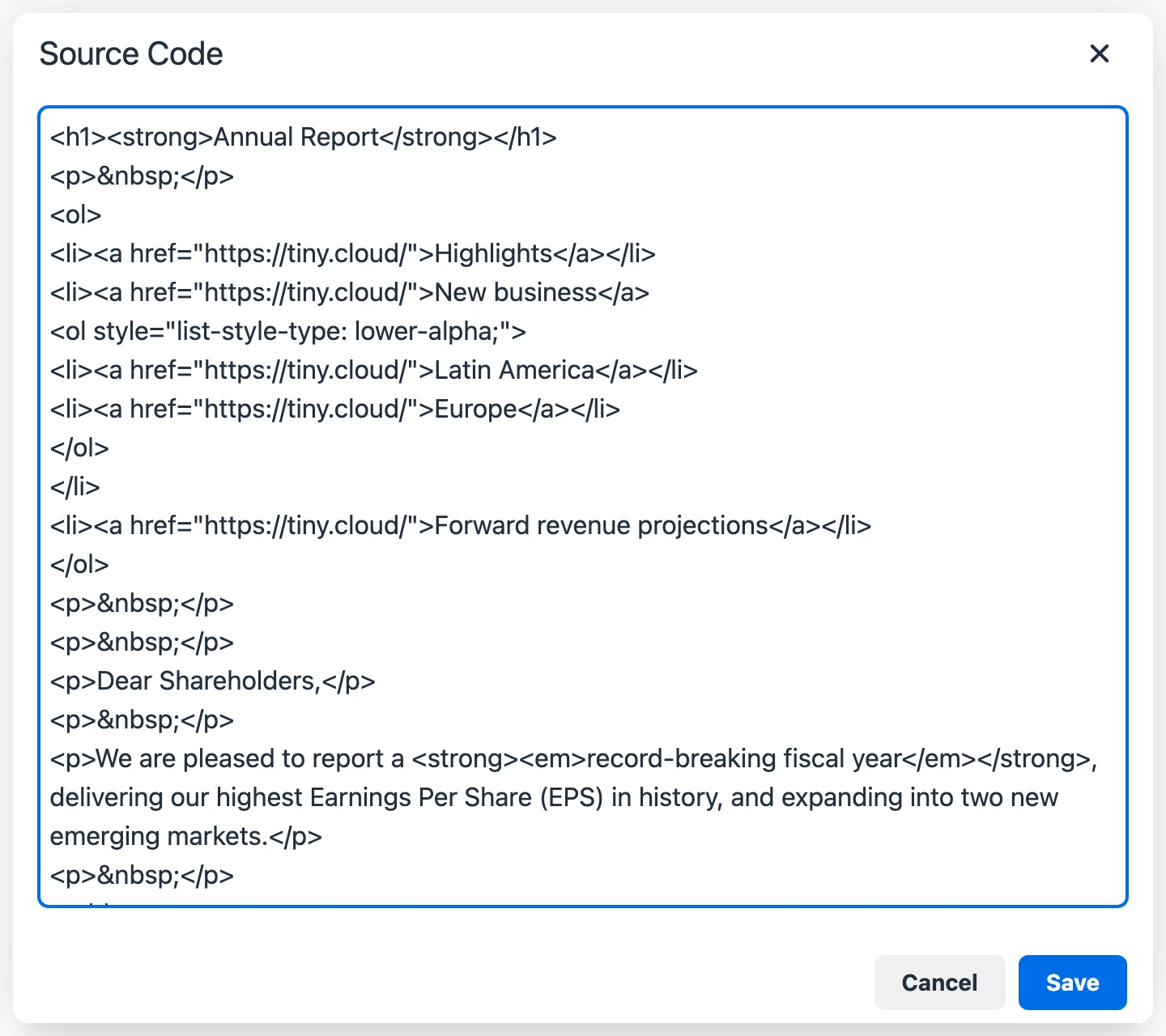
In TinyMCE's Source code view, the whole document now looks like this, with real <ol> and <li> elements and no Word styling:
Many products already store Word HTML like the "before" example, so can it be cleaned up later? A script that turns paragraphs starting with "1." into list items would also convert numbered headings, and only the original paste knows which was which. We compared two ways of cleaning stored HTML with cleaning at paste time, across five versions of the whole document. Versions 1 and 2 are the two starting points, and versions 3 to 5 start from the HTML they stored:
- No PowerPaste: the Word document pasted into the demo's first editor, with TinyMCE's built-in paste. This is the kind of HTML a product ends up storing.
- PowerPaste: the same Word document pasted into the demo's second editor, where PowerPaste converts it as it's pasted (set to keep Word's formatting).
- Version 1, pasted again: the HTML that version 1 stored, pasted into a new TinyMCE editor with default settings. Does a second paste clean stored HTML?
- Version 1 + content model: the HTML that version 1 stored, loaded into TinyMCE with our content model. Does a content model clean it?
- Version 2 + content model: the HTML that version 2 stored, loaded with the same content model. It differs from version 4 only in how the document was first pasted, so it shows what converting at paste time adds.
|
Measure |
1. No PowerPaste |
2. PowerPaste |
3. Version 1, pasted again |
4. Version 1 + content model |
5. Version 2 + content model |
|---|---|---|---|---|---|
|
Size (bytes) |
6,908 |
5,611 |
3,372 |
1,439 |
1,375 |
|
Inline |
39 |
52 |
0 |
0 |
1 |
|
Word-only CSS ( |
55 |
0 |
0 |
0 |
0 |
|
Classes |
28 |
1 |
28 |
0 |
0 |
|
|
45 |
8 |
35 |
0 |
0 |
|
HTML comments |
10 |
0 |
10 |
0 |
0 |
|
Real list items ( |
0 |
5 |
0 |
0 |
5 |
|
Fake list paragraphs |
5 |
0 |
5 |
5 |
0 |
|
W3C errors |
55 |
0 |
not checked |
0 |
0 |
Neither cleanup of stored HTML rebuilt the list. Pasting version 1 again (version 3) removed every inline style but kept Word's 28 classes, its 10 comments and all five fake list paragraphs. The content model (version 4) went further: it stripped everything Word had added, taking the HTML from 6,908 to 1,439 bytes, whether we pasted it or loaded it in code. But the five fake list paragraphs were still paragraphs. A content model decides which HTML is allowed. It can't tell that a paragraph starting with "1." was meant to be a list item. PowerPaste can't fix it at that stage either: when we pasted the stored version 1 HTML into the PowerPaste docs demo, it treated it as ordinary HTML and kept all five paragraphs.
Only version 5 has a real list, because PowerPaste rebuilt it from the original clipboard. It reads Word's list markers at the moment of pasting, before they become stored paragraphs, and turns them into <ol> and <li>.
Version 2 still has 52 inline style attributes, though, because the demo shows PowerPaste's merge mode ("Keep formatting"). Merge is meant for products where pasted content should keep the look of the original document: it keeps Word's inline formatting and removes Word-specific and invalid markup, which is why version 2 has no mso- CSS or comments. For HTML that ships as an email or a page, use PowerPaste in clean mode, which keeps headings, tables and lists and drops Word's styles and classes. By default, PowerPaste asks which mode to use on each Word or Google Docs paste (the prompt setting, which the demo uses) and cleans other HTML automatically. PowerPaste is part of paid TinyMCE plans.
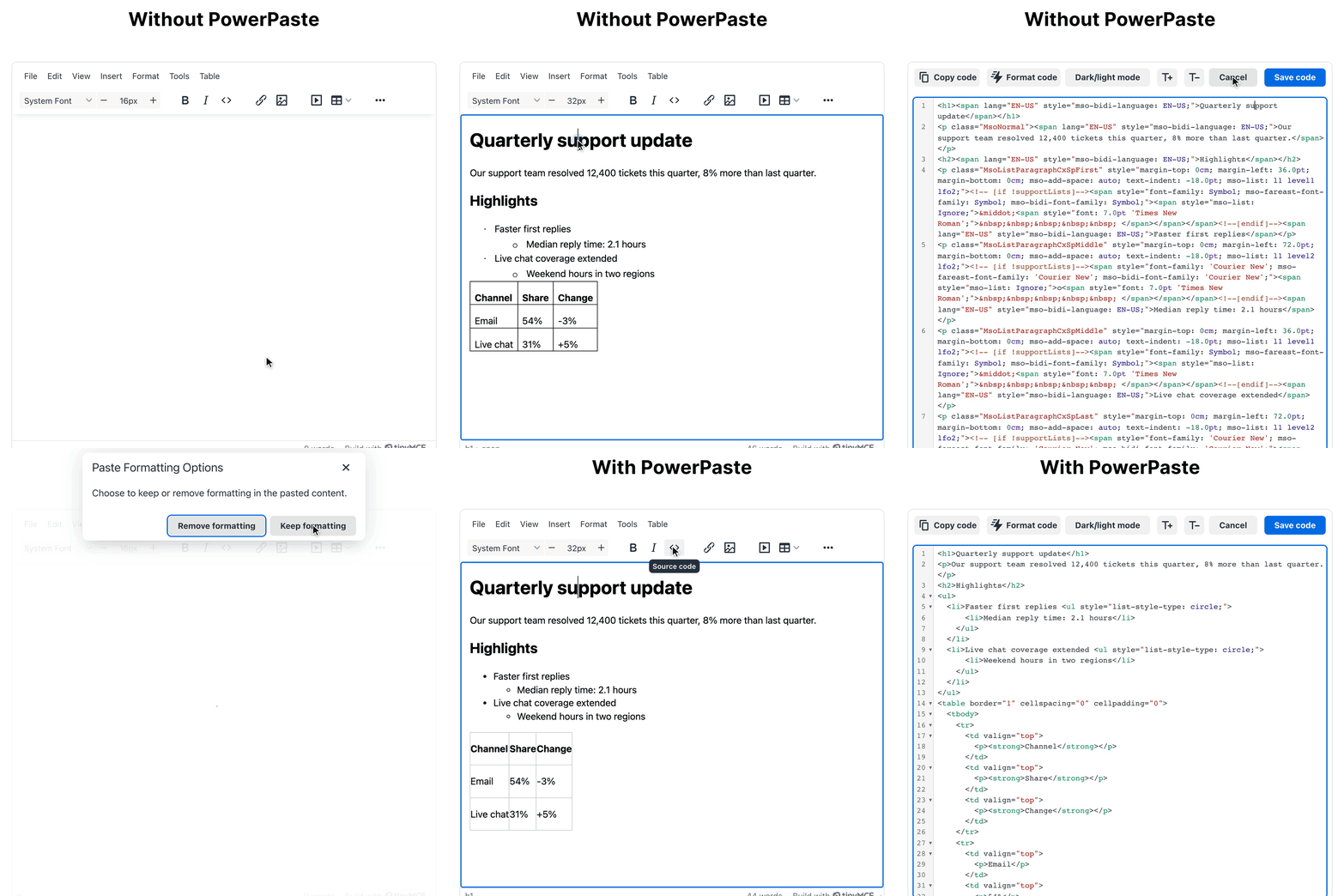
On Tiny's demo page, the two editors sit side by side (one above the other in a narrow window). In the GIF below, we paste a second Word-format document, a quarterly support update, into each and open each editor's source view. Without PowerPaste, the editor stored 5,433 characters with 54 style and 15 class attributes and a faked list. With PowerPaste and Remove formatting, it stored 893 characters: no classes, real nested lists and the table still a table.
You can see the difference without opening an inbox. On a web page, version 1 pushes the typed numbers past the left edge of the column, on a 375-pixel phone and at 640 pixels alike. Word hangs each number 18 points (24 pixels) left of its paragraph, and nothing in the stored HTML makes room for it. The cleaned version shows a real nested list in the site's own styles.
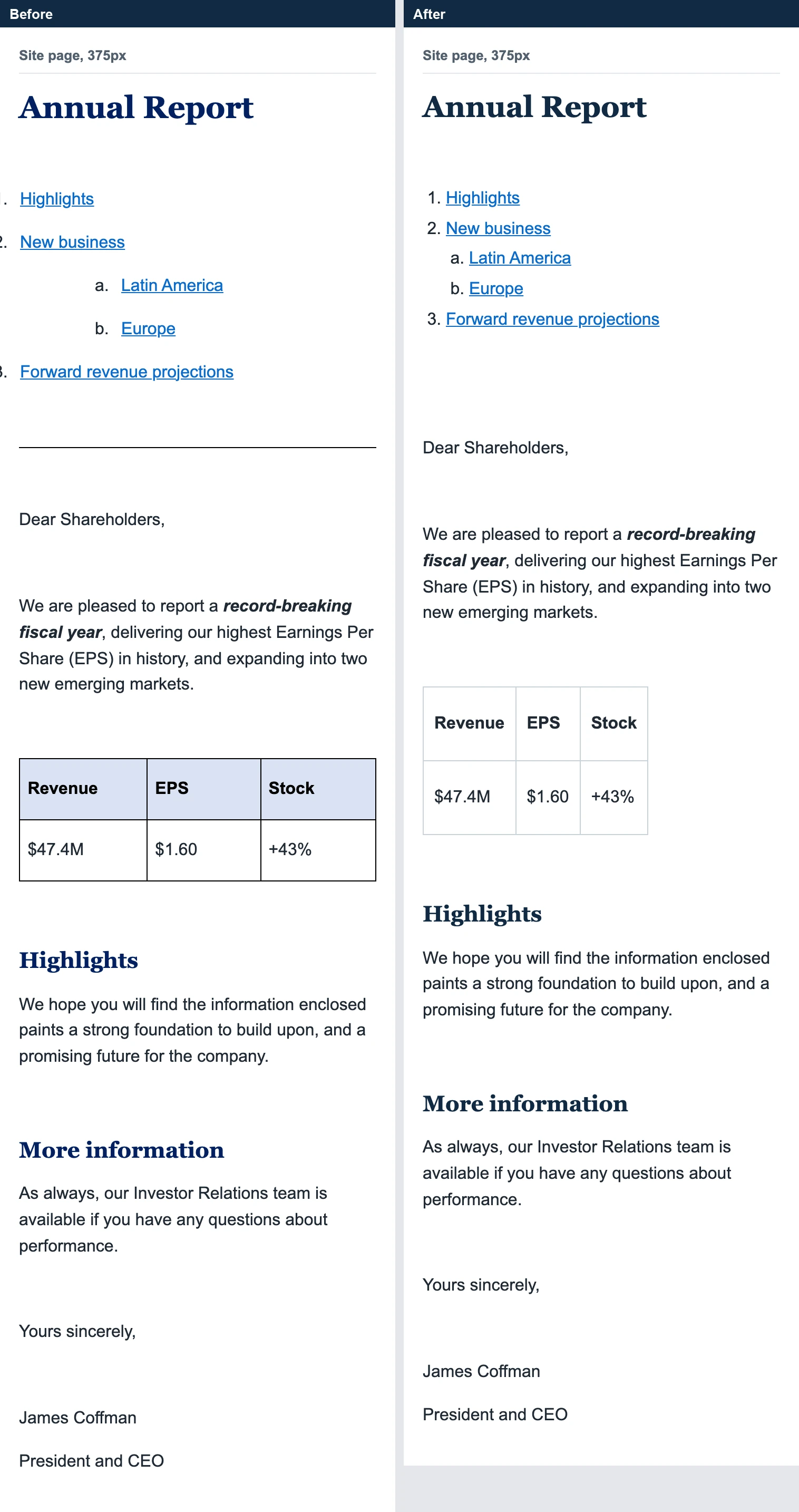
The same Word document on a 375px web page: pasted without PowerPaste (left), where the typed numbers run off the edge, and with PowerPaste plus our content model (right).
Email clients are stricter. Gmail doesn't support the negative indent Word uses to hang each number: caniemail.com's support data lists negative values as unsupported in Gmail for both text-indent and margins. The content-model version uses no CSS that caniemail flags for Gmail.
We tested Gmail directly on 22 October 2026. We sent the start of the version 1 list and the whole content-model list from a Gmail account to itself. Then we compared the HTML that was sent (Gmail's Show original view) with what Gmail on the web displayed.
The two Word paragraphs that carried a negative text-indent arrived with their style and class attributes removed, so their typed numbers sat flush left in loose paragraphs. A negative margin on a test paragraph was dropped too, while positive margins and a positive indent survived. The content-model list arrived as a real nested <ol> with its a./b. numbering. (Gmail's composer had already removed one negative indent before sending, so we compared only what Show original confirmed was sent.)
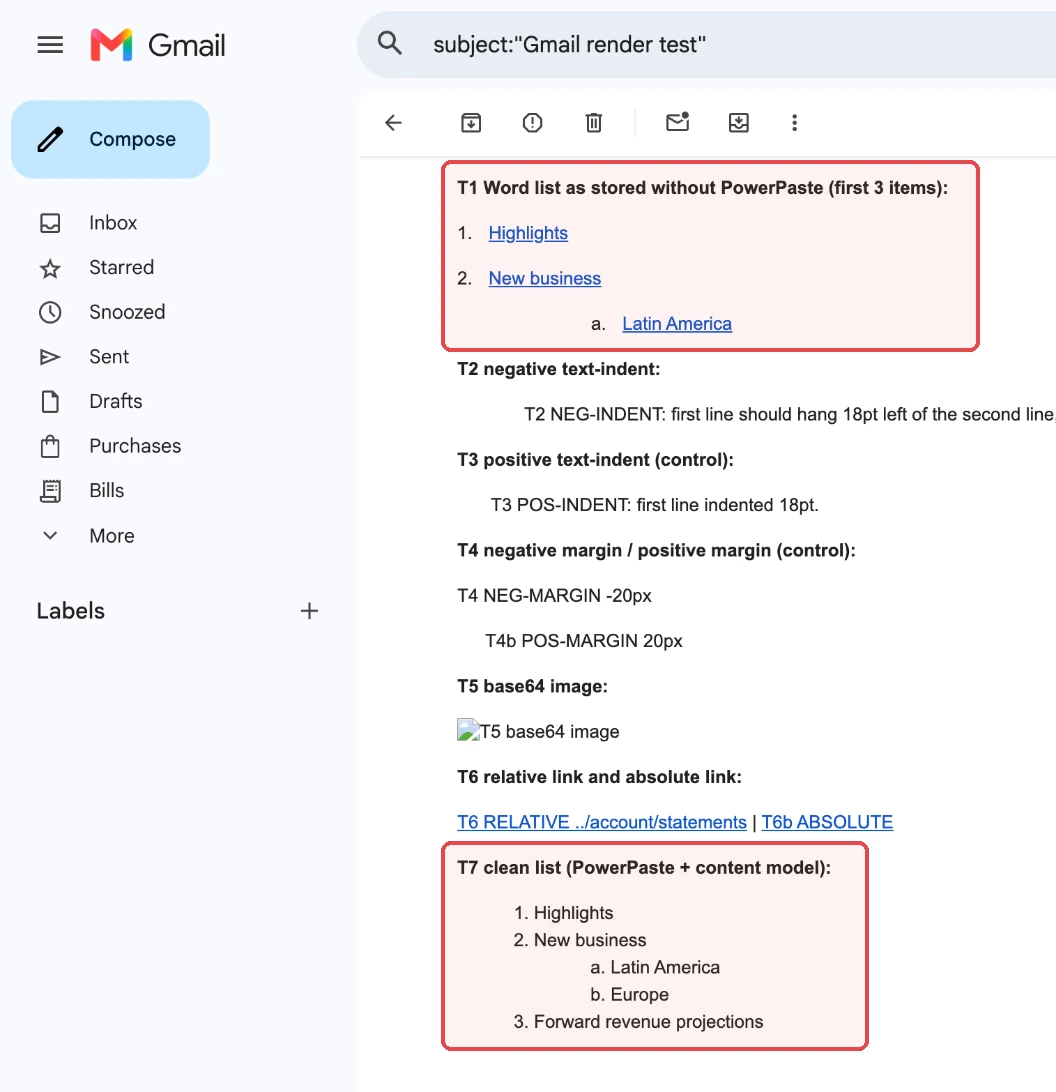
Two things disappeared that you might want back: Word's divider line and the table header shading. Both are styling, which your stylesheet should own. The a./b. numbering survived because our content model allows the list-style-type style on lists and nothing else. A content model makes you take those decisions on purpose, which is the point of having one.
Fake lists are only one of the paste failures that reach production. Our breakdown of the 7 things that break when users start pasting covers the other six, from tables that lose merged cells to images that point to files your server can't reach.
If you're setting this up, our guide to copy and paste content from Word or Excel covers the configuration, and the paste test in copy and paste from Word in rich text editors compares how editors handle the same Word file.
Typing: the same keystrokes, two different documents
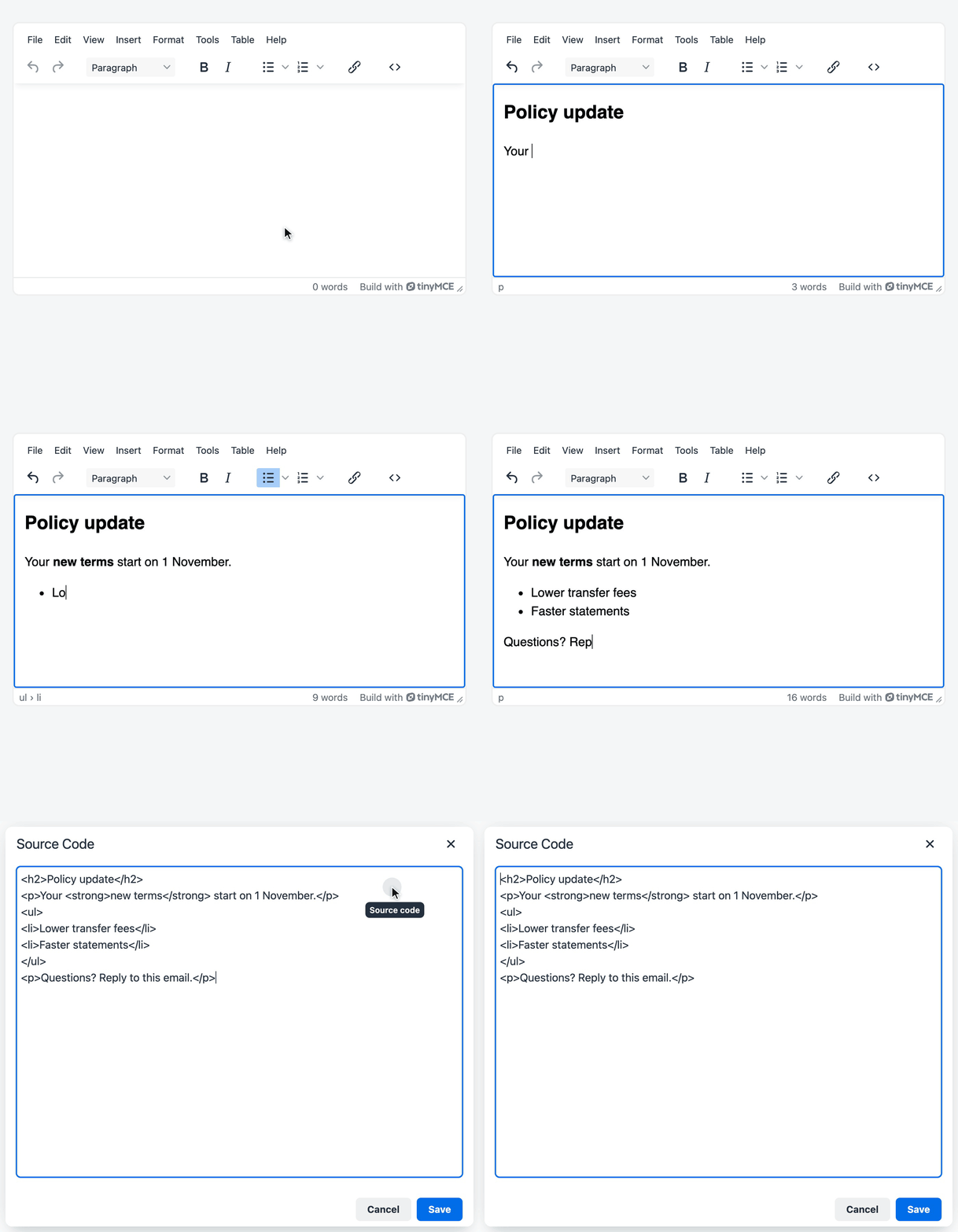
Markdown shortcuts are everywhere now, from chat apps and note-taking tools to AI assistants, so many people type them out of habit: ## and a space for a heading, - and a space for a list item. Whether those characters become a real heading and list in the stored HTML depends on the editor.
TinyMCE handles them with text patterns, typing shortcuts that turn a few characters into formatting as you type. By default, they follow basic Markdown. # to ###### plus a space make headings, and * or - plus a space start a bulleted list. 1. starts a numbered list, > starts a quote block, and **text** makes text bold. The list shortcuts need the lists plugin. You can change the patterns, add your own or turn them off with the text_patterns option, described in the content behavior options. A bare contenteditable element, the browser's own editing with no editor on top, leaves the characters as typed.
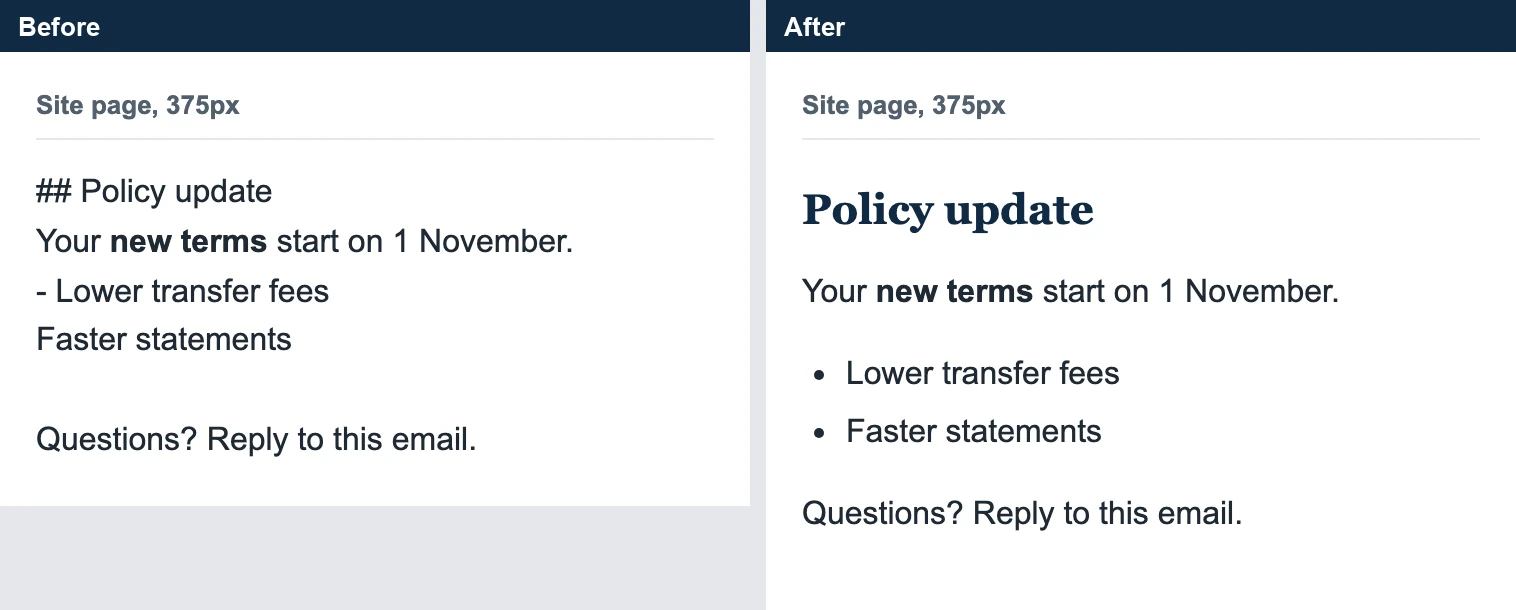
To compare the two, we typed one short customer notice into each: ## Policy update, Enter, a sentence with "new terms" in bold, then - Lower transfer fees, Enter, Faster statements, Enter twice, and a closing line. The bare contenteditable in Chromium 148 stored plain lines of text, with the "##" and "-" still in them:
## Policy update<div>Your <b>new terms</b> start on 1 November.</div><div>- Lower transfer fees</div><div>Faster statements</div><div><br></div><div>Questions? Reply to this email.</div>TinyMCE 8.10.0 with its default settings stored a heading, a paragraph and a list:
<h2>Policy update</h2>
<p>Your <strong>new terms</strong> start on 1 November.</p>
<ul>
<li>Lower transfer fees</li>
<li>Faster statements</li>
</ul>
<p>Questions? Reply to this email.</p>Both versions are valid HTML: the W3C checker found no errors in either. The difference is what the markup means. In TinyMCE's version, the heading is a heading and the list is a list, so a stylesheet can style them and a screen reader announces a list of two items. TinyMCE also writes bold as <strong> rather than <b>. In the bare version, "##" and "-" are just characters at the start of a line. No stylesheet can tell they were meant as a heading and a list, and the first line isn't even inside a paragraph.
The remaining risk is people faking a heading with bold text and a bigger font size. Offer heading formats in the toolbar, leave out font-size controls, and a content model without the style attribute removes any size that slips through.
Broken markup: valid output that can still change meaning
When an editor receives broken HTML, it repairs it. TinyMCE turned almost all of our broken samples into valid HTML that authors can edit normally. Repair follows the HTML rules, not the author's intent, though, so the result still deserves a look.
To test it, we wrote 12 small test files, each with one defect we see in old CMS exports, hand-edited templates and cut-off saves. They include an unclosed link, unclosed bold, a paragraph inside a paragraph, list items with no list, the old <font> and <center> tags, unsafe attributes, content cut off mid-link and empty tags. Eleven of the files were invalid HTML, with 26 W3C errors between them, because one defect can cause several errors. The twelfth, a message full of empty tags and empty paragraphs, was valid HTML that still needed cleaning. We loaded each file into TinyMCE in code and checked the HTML before and after with the W3C checker.
|
Measure |
Broken input |
After TinyMCE, default settings |
After TinyMCE, with our content model |
|---|---|---|---|
|
Test files with W3C errors |
11 of 12 |
2 of 12 |
1 of 12 |
|
W3C errors, all 12 files combined |
26 |
2 |
1 |
Most of the repair is silent and correct. List items with no list got one. Stray closing tags disappeared. Content cut off in the middle of a link came back closed. The <script> element, the onclick and onerror attributes and the javascript: URL were removed in both setups. Of the two errors left with default settings, one was the old <center> tag, which our content model removes. The other, left in both setups, is an image with no alt text, which only the author can supply.
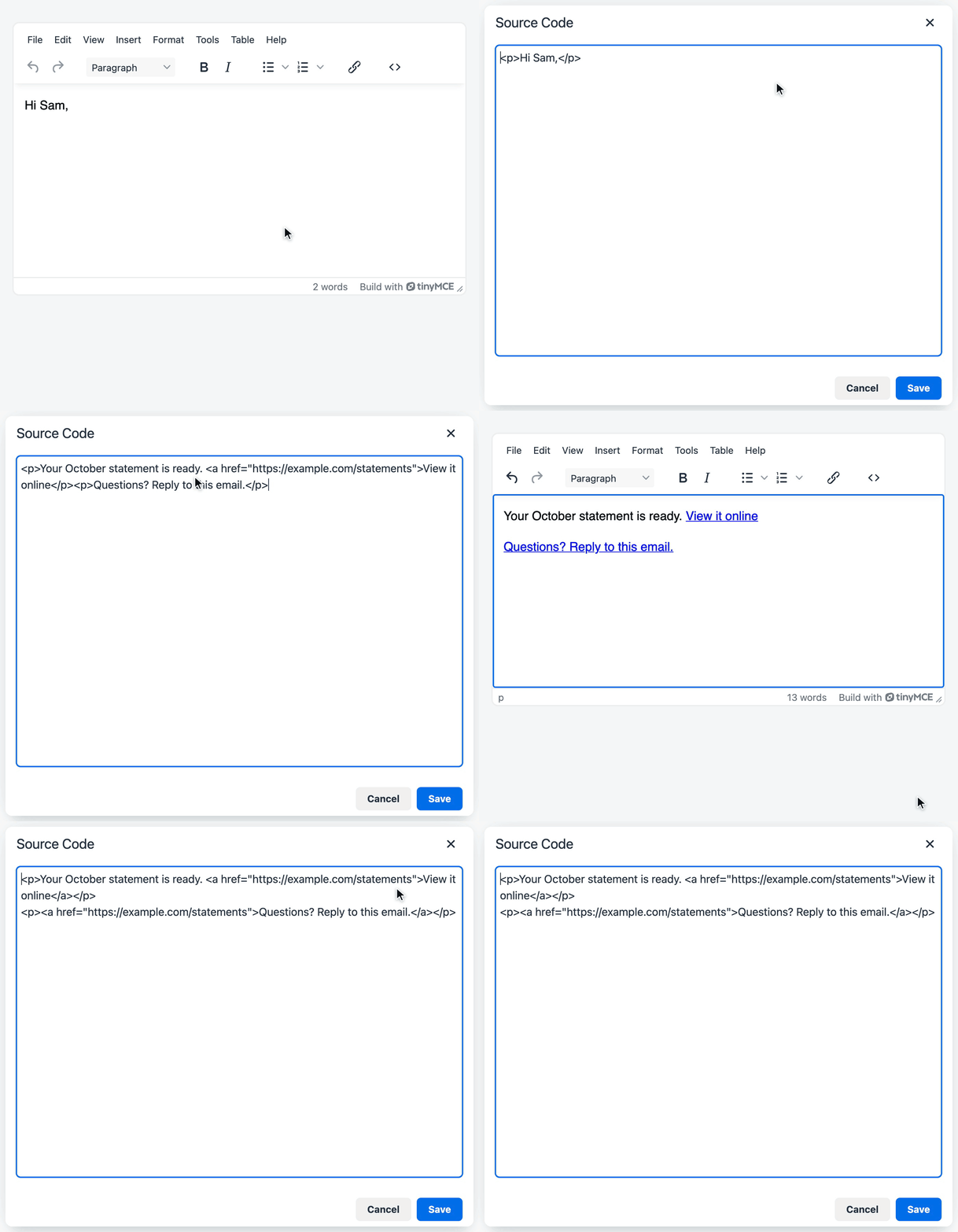
Then there are the repairs that change meaning. Here's the unclosed link and the unclosed bold, after TinyMCE:
<!-- in:  <p>Read the <a href="https://example.com/terms">updated terms</p><p>Your statement is attached.</p> -->
<p>Read the <a href="https://example.com/terms">updated terms</a></p>
<p><a href="https://example.com/terms">Your statement is attached.</a></p>

<!-- in:  <p>Important: <strong>fees change on 1 November.</p><ul><li>Transfers</li><li>Card payments</li></ul> -->
<p>Important: <strong>fees change on 1 November.</strong></p>
<ul><li><strong>Transfers</strong></li><li><strong>Card payments</strong></li></ul>Neither output says exactly what the author meant. In the first, the link was never closed, so the repair carried it into the next paragraph, which became a link too. In the second, the bold was never closed, so both list items became bold. That's the HTML standard's rule for an unclosed tag. But both results are valid HTML the author can edit normally: select the second paragraph and remove the link, or select the list and remove the bold. Unrepaired, the same markup would be worse. An editor that couldn't handle the unclosed tag couldn't let the author fix it, and once published, one unclosed bold can turn the rest of an article bold. The repair still deserves a look in the source view before the content ships. You can watch it happen in the editor: paste the unclosed link into the Source code view, save, and the next paragraph turns into a link.
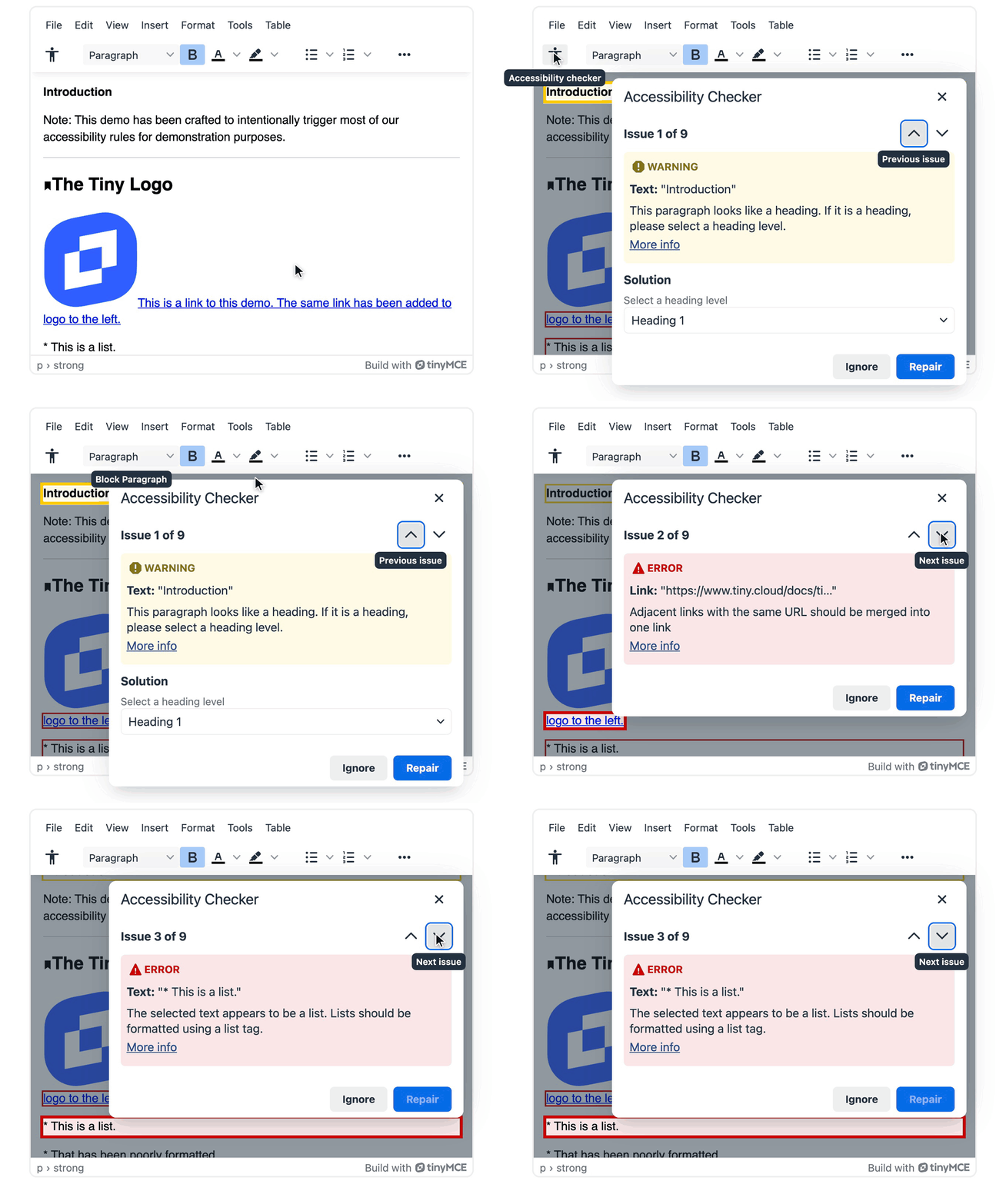
Some things no repair can add. It can't write alt text for an image: the last remaining error, in both setups, is an image without it. And it can't tell whether four empty paragraphs were meant as spacing or left by mistake. An authoring check can catch part of this while the author is still in the editor. TinyMCE's Accessibility Checker (paid) checks content against WCAG and Section 508 rules. It flags images without an alt attribute, headings out of order, paragraphs used as headings and text faked as a list (rules I2, D2, D1, D4U and D4O).
Do a second check for exploitable broken markup on the server. The security guide is direct about why: anything that runs in the browser can be bypassed by an attacker, and Tiny recommends running received editor content through server-side filters. Our guide to input sanitization covers that half.
What breaks only after the HTML leaves your app
Three problems look fine inside your app and break in an inbox or on another site: relative links, embedded images and styles that stay behind in the editor.
Relative URLs. A relative URL is a short link, such as ../account/statements, that only works from the page it's on. With its default URL settings, TinyMCE turns links to your own site into relative links, based on the page that hosts the editor. Our editor ran at /app/compose/, and a link and an image with full same-site URLs came out like this:
<p>View your <a href="../account/statements">latest statement</a> or <a href="https://help.example.com/fees">read about fees</a>.</p>
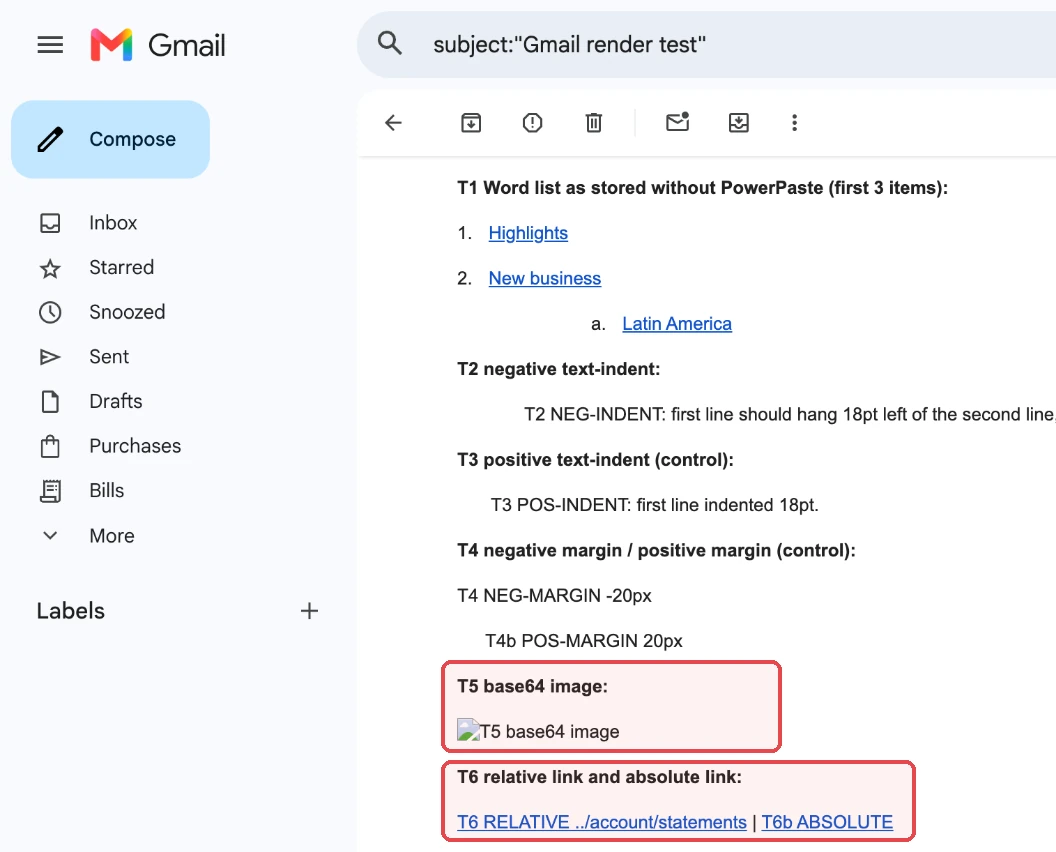
<p><img src="../assets/logo.png" alt="Example Bank" width="120" height="40"></p>Inside your app, both work. In an email, they don't: in our Gmail test, the link to ../account/statements arrived as http://../account/statements, which goes nowhere. It takes one ordinary action to create one:
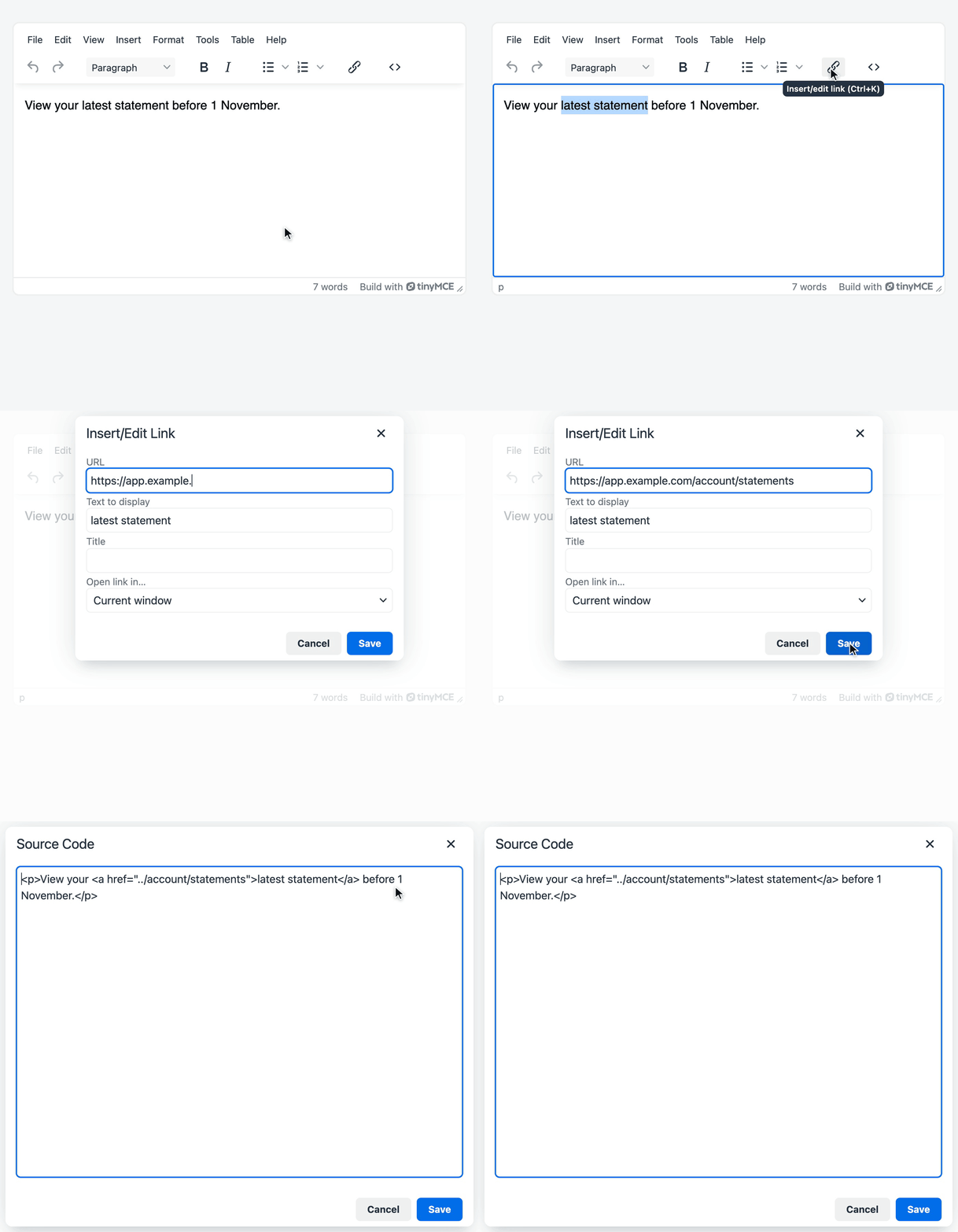
Set relative_urls: false and remove_script_host: false, and the same input keeps its full URLs; the URL handling options explain how the two settings combine. The link to another site stayed a full URL in both setups.
Base64 images. Base64 is a way to embed an image's data directly in the HTML as text. We pasted a small image this way, a 600 by 200 pixel PNG of 33,279 bytes, about the size of an email header banner. Inside the HTML, it made the message body 44,449 bytes, because base64 encoding makes data roughly a third larger. caniemail lists base64 images as not supported in Gmail webmail, and in our Gmail test the image arrived with an empty src, so only its alt text showed.
The intended setup avoids base64 altogether. TinyMCE doesn't host images, so uploads go to storage you provide: an images_upload_handler sends each image there and returns its URL. The image upload docs also say to call editor.uploadImages() before saving, so images aren't stored as base64. With that in place, the message body dropped to 109 bytes, with a link to the hosted image.
Styles. With default settings, TinyMCE saves inline styles, the style attributes on elements, with the content. It doesn't save styles from a stylesheet or a <style> block in the page's <head>. In classic mode, the editing area is an iframe, so the CSS you load with the content_css and content_style options styles only the content, and the page around the editor keeps its own styles (content CSS options). In inline mode there's no iframe, and the page's own CSS styles the content. For a web page, that separation is what you want: the published page loads the same stylesheet, the stored HTML isn't cluttered with repeated inline CSS, and the styles stay in one stylesheet that's easier to maintain. See TinyMCE CSS and custom styles for how the editor's styles and your page's styles relate.
Email is different, because email clients can't be relied on to apply a stylesheet. Classes that look right in the editor arrive in the inbox with no stylesheet behind them, and Gmail supports <style> only partly. Per caniemail, Gmail on the web ignores it inside the <body> and limits it to 16 KB. The Gmail apps don't apply it for non-Google accounts, and Gmail's mobile web view doesn't support it at all. So for email, the CSS has to be inlined into the HTML.
Inlining while people edit isn't the answer. Content full of inline styles is harder to edit, and once authors can set some styles, it's hard to stop them setting others. Put the styles you want in a stylesheet, load it into the editor so content looks right while it's written, and inline the CSS on the way out. TinyMCE's Inline CSS plugin (paid) does that last step: it returns the content with the content_css and content_style rules written into each element. Our guide to inline CSS in HTML walks through it.
Size makes all three worse. Gmail clips messages larger than 102KB behind a "View entire message" link, and the Word version above was five times the size of the cleaned one for the same document. Test in the email clients your customers actually use before you ship; our post on email rendering across clients covers the testing workflow.
Configure TinyMCE for HTML that ships
This is the configuration behind the lab's "after" results: a content model, two URL settings, an upload handler and a short filter that removes HTML comments. The PowerPaste lines set clean mode as the PowerPaste options describe it. Our lab ran the open source build, so its PowerPaste results come from Tiny's demo page.
tinymce.init({
  selector: "#message",
  plugins: "lists link table code powerpaste", // PowerPaste is a paid plugin

  // 1. Content model: only what your stylesheet styles.
  //    valid_elements drops the default rules, so they're declared again:
  //    '#' pads an empty block, '-' removes an empty inline element, 'strong/b' writes <b> as <strong>.
  valid_elements:
    "#p,br,-h1,-h2,-h3,-strong/b,-em/i,-u,-s,-a[href|title|target|rel],-ul[style],-ol[style],-li," +
    "blockquote,hr,table,caption,thead,tbody,tfoot,tr,#th[colspan|rowspan|scope],#td[colspan|rowspan]," +
    "img[src|alt|width|height]",
  valid_styles: { ol: "list-style-type", ul: "list-style-type" }, // keep a. b. and i. ii. numbering, nothing else

  // 2. Links and images that work outside the app
  relative_urls: false,
  remove_script_host: false,
  images_upload_handler: (blobInfo) => uploadToStorage(blobInfo.blob()), // your function, resolves to a URL

  // 3. Paste: keep Word and Google Docs structure, drop their formatting
  powerpaste_word_import: "clean",
  powerpaste_googledocs_import: "clean",
  powerpaste_html_import: "clean",

  // 4. Without PowerPaste, Word's comment markers get through: remove them
  setup: (editor) =>
    editor.on("PreInit", () => {
      editor.parser.addNodeFilter("#comment", (nodes) =>
        nodes.forEach((node) => node.remove())
      );
    }),
});
A few lines need an explanation, because each one fixed something we measured:
- Re-declared defaults. Once you set
valid_elements, TinyMCE's default rules no longer apply unless you declare them again, as the content filtering documentation notes. Those rules pad empty paragraphs so they don't collapse, remove empty inline tags and write<b>as<strong>. Our first content model left empty<strong></strong>tags in place until we added the prefixes. If you only want to add a few elements to TinyMCE's default rules rather than replace them, useextended_valid_elementsinstead. - The comment filter. Without PowerPaste, HTML comments get through. The content model doesn't cover them, so Word's hidden
<!-- [if !supportLists]-->markers survived the filtering in all ten places until this filter removed them. PowerPaste removes them as it pastes (the PowerPaste version had none), so the filter is for content that arrives another way: TinyMCE's built-in paste, stored HTML and imports. - PowerPaste in clean mode. Setting
powerpaste_word_importandpowerpaste_googledocs_importto'clean'instead of the default'prompt'means nobody can keep Word's or Google Docs' formatting in content that ships as HTML. Our post on Google Docs to HTML covers the Google Docs side. - No
*[*]. Allowing every element and attribute turns the filtering off, keepsonclickand<script>, and isn't recommended.
Treat the content model as a product decision. Start from what your stylesheet actually styles: paragraphs, two or three heading levels, lists, links, tables and images. Add elements only when you display them, and run the same allow-list on the server when content is saved. Web pages and emails can share the model; email adds full URLs and hosted images as hard requirements, while pages can allow classes your own stylesheet defines. If your users edit whole email documents rather than a body fragment, our post on Full Page HTML covers complete-document editing.
A checklist for HTML emails and pages built in an editor
Before you ship editor HTML, check these eight things with your own content, not a demo paragraph. They're checks for your team, not for the people writing in the editor:
- View the source of a real Word paste and a real typed message in the editor's source view.
- Validate it with the W3C Nu HTML Checker. Zero errors is the baseline, not the goal.
- Count the bytes of the full email against Gmail's 102KB clipping limit.
- Search for leftovers:
mso-,Msoclasses,langattributes on every span, HTML comments, empty paragraphs used as spacing. - Check structure: headings and lists are real elements, not bold or numbered paragraphs.
- Check portability: full URLs, hosted images, no
data:sources, no classes your stylesheet doesn't define. - Move styling to a stylesheet and inline its CSS when the message is sent.
- Test the clients your customers use. Send real messages to Gmail on the web, its app and the other clients your audience uses, or use a rendering service such as Litmus or Email on Acid.
One item from older HTML compliance checklists still holds: size your storage field for the markup, not just the text. In our Word test, the stored HTML was more than eight times the length of the text it carried.
The lab numbers in this article come from a test setup we built for it. It includes test files, a Playwright harness that ran each input through both editor configurations, a scoring script, a caniemail check and the Gmail test message. It ran against the open source TinyMCE build from npm, so you can repeat the method with your own content model and documents. If email is your main use case, our overview of the rich text editor for email apps covers the product side.
Check your editor's HTML before customers see it
You can't judge HTML quality by how content looks in the editor. You judge it in the source, against four properties: lean, structural, valid and portable. Our tests showed the editor decides most of them before anything is saved, and that the failures left over (fake lists, relative links, base64 images, styles with no stylesheet) come down to configuration you control.
The cheapest check is also the easiest one to put off. Paste one real Word document and type one real message into your editor, open the source view, and send the result to the inboxes your customers use before they do. Once content leaves your app, HTML quality is product quality, and the editor is the last place you can still fix it.
FAQ
Can you get clean HTML from TinyMCE without paid plugins?
You can get most of the way with the open source TinyMCE build, because the parts that did the most work in our tests are core options. Typing produced real headings and lists with default settings. Loading our broken test files cut the number with W3C errors from 11 of 12 to 2 of 12. And the content model, URL settings, upload handler and comment filter in the configuration above are all part of the core editor. What the open source build can't do is rebuild lists that Word faked: the content model removed every Word class and comment but kept the five fake list paragraphs. That takes PowerPaste, which is part of paid plans, as are Accessibility Checker and the Inline CSS plugin.
How do you keep content pasted from Excel clean?
Content pasted from Excel needs the same paste-time conversion as Word. PowerPaste cleans content from Word, Excel, Google Docs and other HTML sources. In clean mode it keeps table structure and removes inline styles and classes, so a spreadsheet table arrives as an HTML table your stylesheet can style. Allow tables in your content model; the one in this article keeps colspan and rowspan on cells, which merged header cells depend on. Plan for two limits from the PowerPaste documentation. Pasting from Excel online isn't supported and arrives as plain text. And when local images are allowed, images in Word and Excel content arrive as base64, so keep the upload handler in place.
Does a content model filter AI-generated content too?
Yes. In TinyMCE, the same filtering applies whatever the source, and AI content usually reaches the editor in one of two ways. If your application has a model generate HTML and loads it into the editor in code (with setContent()), it's filtered as it loads. If a user copies a reply from an AI chat, or a page an AI tool rendered, it arrives as pasted HTML and is filtered on paste, like content from Word or a web page. Either way, elements and attributes outside your content model are removed. In our broken-markup test, loading the files also removed a <script> element, an onclick attribute and a javascript: link. What filtering can't judge is meaning. A model that writes a list as numbered paragraphs, or a heading as a bold line, produces the same fake structure Word does, so check AI output in the source view like any other import.
How do you test editor HTML automatically?
To test editor HTML automatically, run TinyMCE in a headless browser as part of your test suite. Load real test files with setContent() and through a simulated paste event, read the result with getContent(), and validate it with the W3C Nu HTML Checker or html-validate. Then fail the build on leftovers your content model should have removed: mso- declarations, classes outside your allow-list, data: image sources, relative URLs and paragraphs that start with a typed number. That's how we ran the tests in this article, with Playwright against the open source build from npm.
What happens to stored content when you add a content model?
In TinyMCE, stored content changes the next time it's loaded into the editor and saved: anything outside the content model is removed. In our Word test, loading the stored HTML under the content model cut it from 6,908 to 1,439 bytes and removed every class, span and comment. But the fake list paragraphs stayed paragraphs, because a content model can't rebuild structure. Before you switch, run a sample of real stored content through the new model and compare the output. For content that matters, paste again from the original document.