


Getting people to edit content is the easy part. Things get harder once several people are suggesting changes and one person has to approve them without anything getting lost. That's the kind of problem teams usually only find in production, and it's what TinyMCE 8.10 is about. Most of it needs no setup work from you.
Here's what's in it:
- Suggested Edits: reviewers get through suggestions in less time, and every decision is easier to trust. It arrives with a routine update.
- TinyMCE AI: your users can update related sections of a page in one request, and the AI keeps them consistent.
- Revision History: everyone can see which version is live, right in its history.
More confident reviews, in less time, with Suggested Edits
With Suggested Edits, people's edits are saved as suggestions, and a reviewer decides what stays. If your product has an approval step, that reviewer is often where things slow down, and small annoyances in the review screen turn into slow approvals and support tickets. A lot of what changed in 8.10 came straight from enterprise customers using Suggested Edits in production.
Reviewers get through the queue faster now, and they make fewer mistakes along the way.
Update to 8.10 and your users get it straight away. There's nothing to configure.
Less time hunting for changes
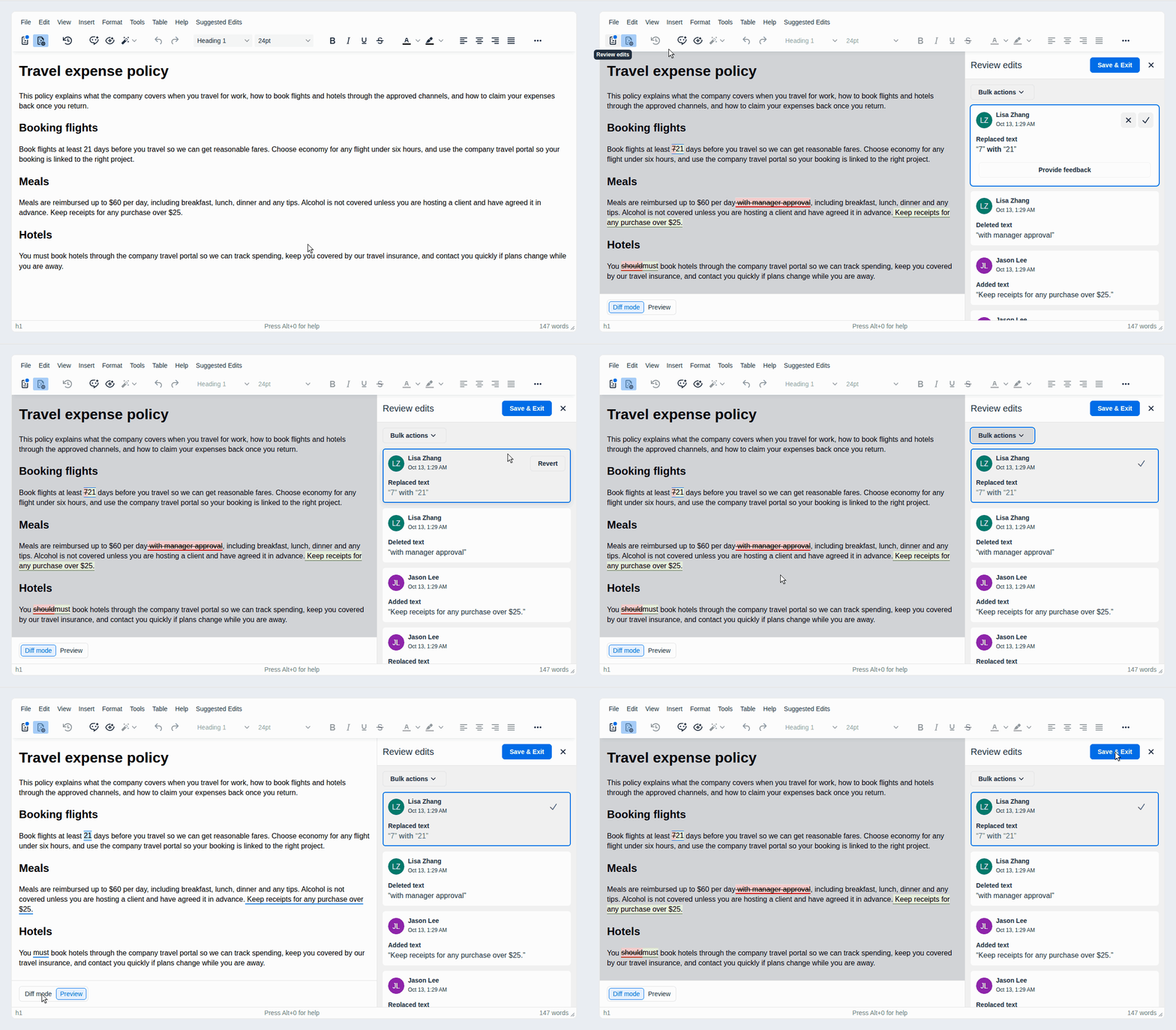
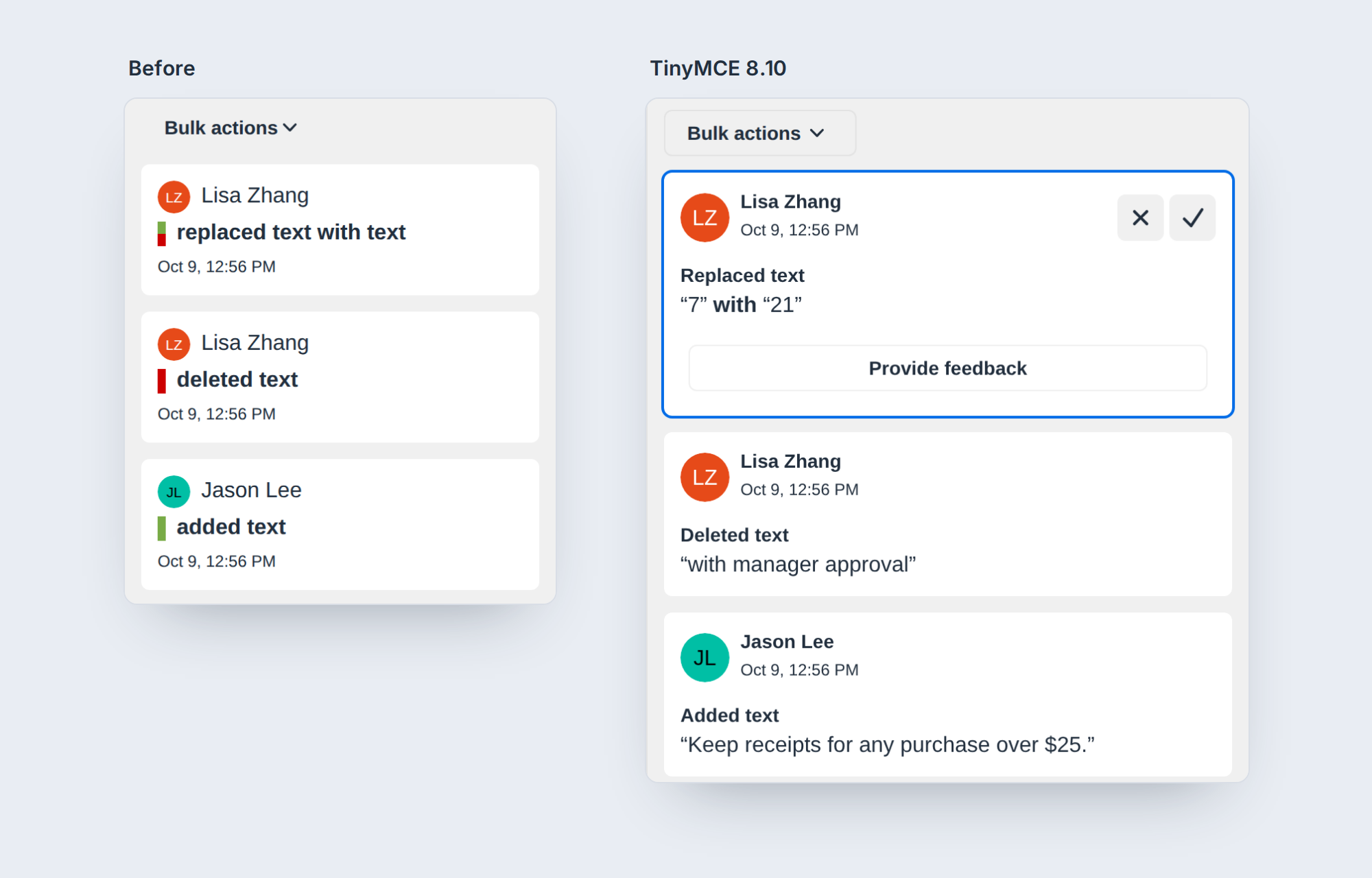
Every suggestion card now quotes the exact words that changed, and the cards follow the order of the document. A reviewer can just read down the list and decide, instead of clicking into the text to work out what each change was. Deleted images are clearly marked too, so nothing slips past.
No accidental approvals
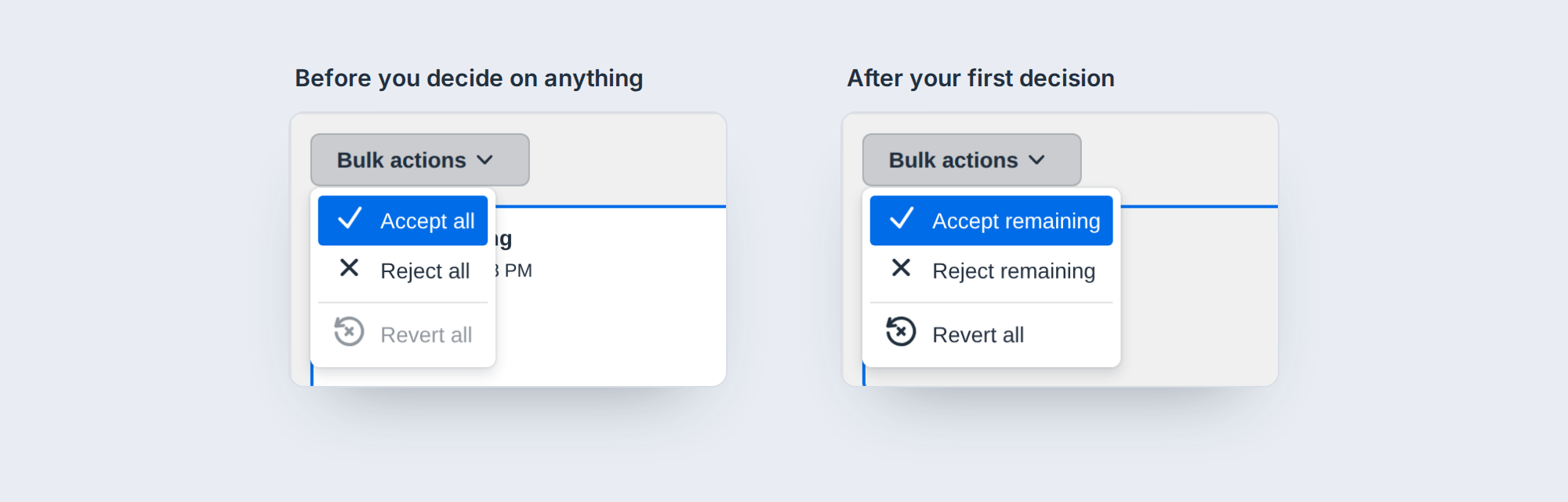
Most reviewers handle the tricky suggestions one by one and then clear the rest in bulk. Until now, that last step could quietly accept something they'd already rejected. Bulk actions now only touch suggestions that are still pending, so a rejected change stays rejected. That's one less way for an unwanted edit to end up in published content.
Stay in the editor while you review
The toolbar and menus stay in view during review, so the screen still looks like the editor your team uses every day. One toggle switches between seeing every change marked up and seeing the finished result. Save, and you're back where you were in the document. The button itself now says "Save & Exit," which makes it obvious that decisions only count once they're saved.
One way to review
Suggested Edits now works like the review screen in TinyMCE AI, so your team only has to learn one way of reviewing changes, whether a colleague or the AI suggested them. Because both are built on the same components, improvements to one will show up in the other.
Already using Suggested Edits?
Update to 8.10 and that's it. Setup and configuration haven't changed, so this lands with a routine update. If you've changed how the old review screen looks with your own CSS, for example to hide buttons, check it after you upgrade. It may need a few tweaks, and our support team can help.
AI that keeps your whole page consistent
Many apps split content into sections, each in its own editor on the same page: a product page's title, summary and description, or a job posting's description, interview questions and notes. Those sections depend on each other, so when one changes, the others usually need to follow.
Until 8.10, TinyMCE AI only saw the section you were working in, which left keeping them in line as a manual job.
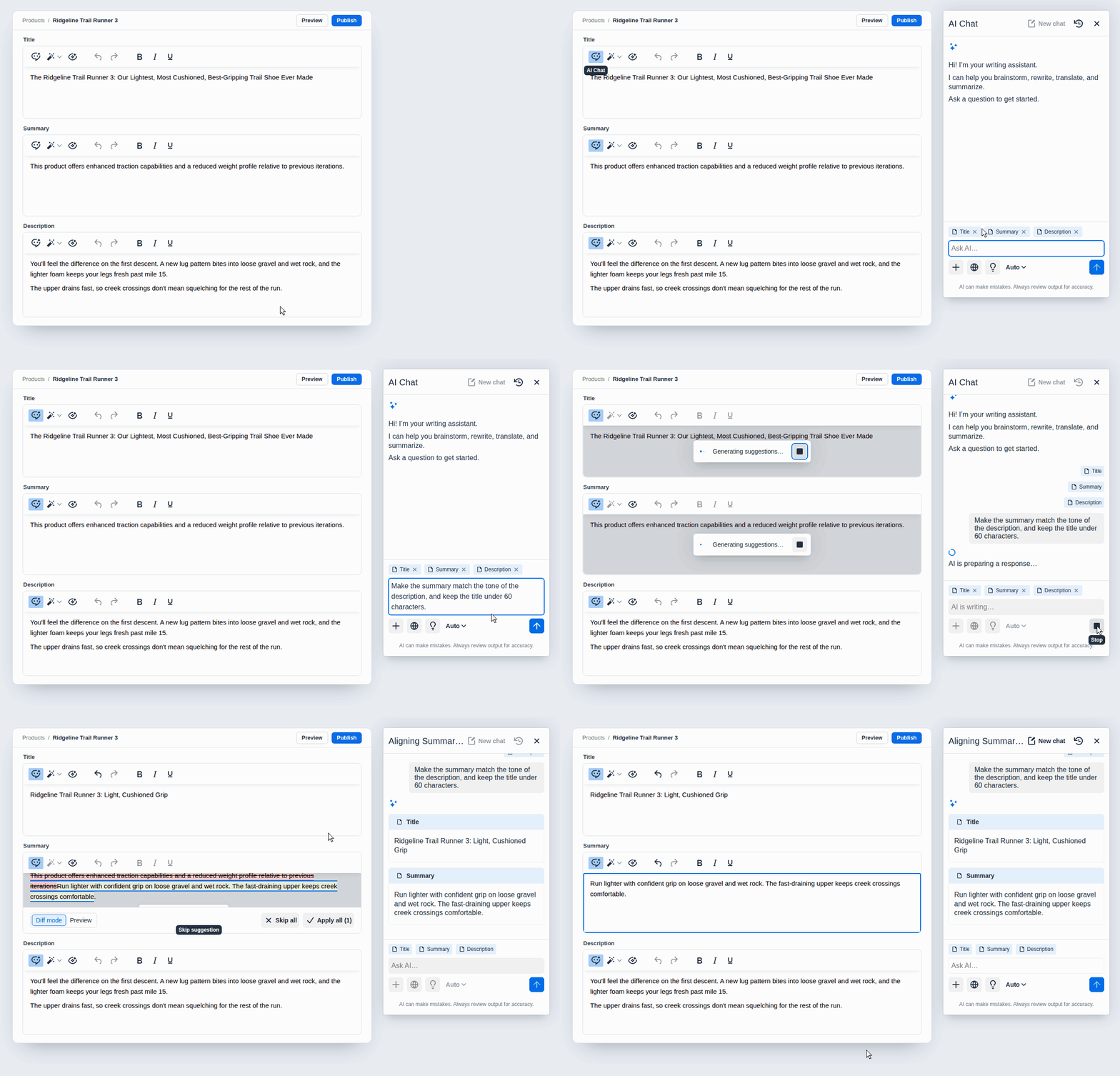
Now the AI reads every editor in a group as shared context, while keeping each section separate. Your users can ask for something that spans the page, like "Make the summary match the tone of the description, and keep the title under 60 characters," and get it done in one request. Or they can change a job description and ask the AI to bring the interview questions in line.
Reviews work the same way: the AI checks each section with the others in mind. Every change is previewed in the section it belongs to, so a person still checks what the AI did before it becomes part of your content. You end up with fewer inconsistencies, and less time spent rereading the page to make sure it still hangs together. Teams on TinyMCE AI On-Premises get all of this too.
Setup is light, and it works with the app you already have. You don't need to merge your sections into one editor. Group the editors, give each section the same name as the heading your users already see, and, if you want, describe what each section is for. The AI keeps that description in mind whenever it works on that section. That's how it knows a title should stay short.
Example setup: a product page with separate editors for the summary and description, grouped so they share one AI conversation.
const common = {
  plugins: "tinymceai",
  toolbar: "tinymceai-chat tinymceai-quickactions tinymceai-review",
  tinymceai_sidebar_type: "floating",
  // plus your usual TinyMCE AI setup, like the token provider
};

tinymce.init({
  ...common,
  selector: "#summary",
  tinymceai_group: "product-page",
  tinymceai_document_name: "Summary",
  tinymceai_document_description:
    "Two sentences shown in search results. Plain language.",
});

tinymce.init({
  ...common,
  selector: "#description",
  tinymceai_group: "product-page",
  tinymceai_document_name: "Description",
  tinymceai_document_description:
    "The full product description. Short paragraphs, h2 subheadings.",
});

// Repeat for each section, like the title
Know where every document stands
Content goes through stages before it goes live: draft, reviewed, published. In 8.10, Revision History lets you tag revisions with your own stages, like "REVIEWED" or "PUBLISHED," and they show up on the revision cards. Anyone opening the history can see which version is live right now, and what it went through to get there, without chasing people or checking another system. You don't have to build that view yourself either. It's one property on a revision's metadata, and the Revision History docs show where it goes.
Update to get it all
TinyMCE 8.10 is available now on Tiny Cloud and for self-hosted setups, and the new TinyMCE AI features also work with TinyMCE AI On-Premises. Update, and your reviewers get the new review screen right away, with nothing to configure.
Everything else is in the full release notes.


