Welcome to TinyMCE AI. Pick an action below or type your own prompt.
', tinymceai_chat_welcome_actions: [ { text: 'Here are some actions to get started:' }, { title: 'Summarize the document', command: 'TinyMCEAIQuickActionsSummarize' }, { title: 'Continue writing', command: 'TinyMCEAIQuickActionContinueWriting' }, { title: 'Translate to Spanish', command: 'TinyMCEAIQuickActionTranslate', value: 'spanish' }, { title: 'Review my document', command: 'ToggleSidebar', value: 'tinymceai-review' } ], tinymceai_token_provider: async () => { return fetch('/api/tinymceai-token', { credentials: 'include' }) .then(resp => resp.text()) .then(token => ({ token })); }, tinymceai_chat_fetch_sources: () => Promise.resolve([{ label: 'TinyMCE resources', sources: [ { id: 'docs', label: 'TinyMCE Documentation', type: 'web-resource' }, { id: 'blog', label: 'Tiny Blog', type: 'web-resource' }, { id: 'survey-2023', label: 'State of rich text editing 2023', type: 'web-resource' }, ] }]), tinymceai_chat_fetch_source: (id) => { const urls = { 'docs': 'https://www.tiny.cloud/docs/tinymce/latest/', 'blog': 'https://www.tiny.cloud/blog/', 'survey-2023': 'https://www.tiny.cloud/developer-survey-results-2023/', }; return Promise.resolve({ type: 'web-resource', url: urls[id] }); }, tinymceai_quickactions_custom: [ { type: 'chat', title: 'Challenge', prompt: 'Challenge statements, verify facts and identify assumptions' } ], tinymceai_languages: [ { title: 'English', language: 'english' }, { title: 'Chinese (Simplified)', language: 'chinese' }, { title: 'Spanish', language: 'spanish' }, { title: 'German', language: 'german' }, { title: 'Japanese', language: 'japanese' }, { title: 'Portuguese', language: 'portuguese' }, { title: 'Swedish', language: 'swedish' }, { title: 'Korean', language: 'korean' }, { title: 'Hindi (Devanagari)', language: 'hindi devanagari' }, { title: 'Italian', language: 'italian' }, { title: 'Klingon', language: 'klingon' }, { title: 'Dothraki', language: 'dothraki' }, ] }); ``` ## Using Chat The [interactive demo](#demo) above shows the Chat sidebar open beside the document. The following sections describe how Chat behaves in the editor. ### Working with the document TinyMCE AI operates directly within the context of the document. Users can ask questions about specific sections, request a full-document proofreading, and more. By enabling  [Web search](#web-search) or  [Reasoning](#reasoning), the chat capabilities can be extended, allowing the chat to look up information online and tackle complex tasks step by step. ### Making changes to the content Users can chat with the AI and use it to introduce changes to the document. Ask it to *"Summarize the document"*, *"Turn this report into a one-page executive summary"*, or *"Suggest better section titles and subheadings"*. The AI will then propose a series of changes to the document that can be [reviewed](#previewing-changes) and [accepted or discarded one by one](#applying-changes). TinyMCE AI works directly on the content instead of requiring copy-paste of chat transcripts. ### Brainstorming The chat feature accelerates the creative process. Begin with a blank document and ask the AI for ideas. Build content step by step by chatting and applying changes. Then review or have the AI rewrite the final draft for best results, all in one place. ## Integration To start using the Chat feature, add `tinymceai` to the plugins option. This will automatically add the  Chat toolbar button and menu item to the default TinyMCE toolbar and menu. See [Plugin Reference](../tinymceai/) for more information regarding installation and enabling AI features. ## Available models Users can select the desired AI model for their conversation from a dropdown at the bottom of the chat. 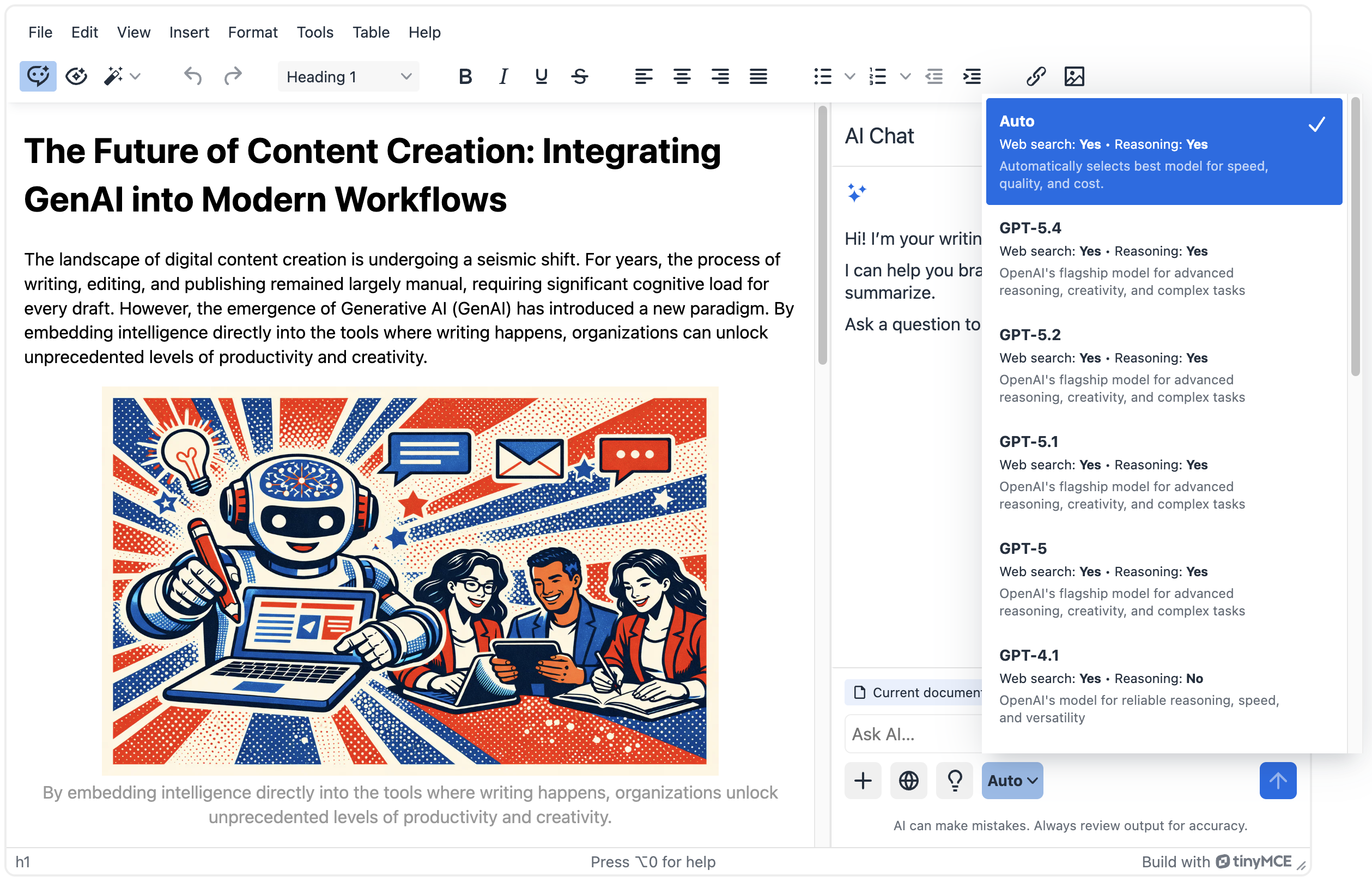 The model can be changed at any time using the same dropdown. Messages sent after a change use the newly selected model. ### Configuration Model selection for AI chat can be configured using these options: - `tinymceai_default_model`: Sets the default model for new chat sessions. The value is a **model configuration id** (for example `agent-1`, `gpt-5.4`, or `claude-4-5-haiku`) that must be among the models allowed by the JWT and subscription. The [Supported Models](../tinymceai-models/#supported-models-table) table lists the documented names and ids. For the list the service returns for a given environment, use `GET /v1/models/{version}` or the in-editor model selector when [tinymceai_allow_model_selection](../tinymceai/#tinymceai_allow_model_selection) is enabled; see [Checking compatibility](../tinymceai-models/#checking-compatibility). - `tinymceai_allow_model_selection`: When `true`, users can pick from models the service exposes in the UI; when `false`, the default model is used without a selector (defaults to `true`). ```js tinymce.init({ selector: '#editor', plugins: 'tinymceai', toolbar: 'tinymceai-chat tinymceai-quickactions tinymceai-review', tinymceai_default_model: 'claude-4-5-haiku', tinymceai_allow_model_selection: true, // Required for authentication tinymceai_token_provider: () => { return fetch('/api/token').then(r => r.text()).then(token => ({ token })); } }); ``` ### Web search Web search in Chat allows the AI to access and retrieve real-time information from the internet. Instead of relying only on pre-trained knowledge, the model can search the web to find up-to-date facts, verify details, and provide more accurate, current answers. Some models use web search automatically, while others may require manual activation. Whether the "Enable web search" button  below the prompt input needs to be toggled depends on the model and sometimes even how the prompt is worded. For models that support web search, use the toggle button to enable it. ### Reasoning Reasoning in Chat models turns on the ability to think through problems, draw logical conclusions, and make sense of complex information. It enables the model to analyze context, connect ideas, and produce well-structured, coherent answers beyond simple pattern matching. Some models use reasoning automatically, while others may require manual activation. Whether the "Enable reasoning" button  below the prompt input needs to be toggled depends on the model and sometimes even how the prompt is worded. For models that support reasoning, use the toggle button to enable it. ## Customizing the welcome message When a user opens Chat before sending any messages, the sidebar can present an introductory message alongside clickable buttons that run common tasks, helping users understand what the AI can do and begin a conversation with a single click. 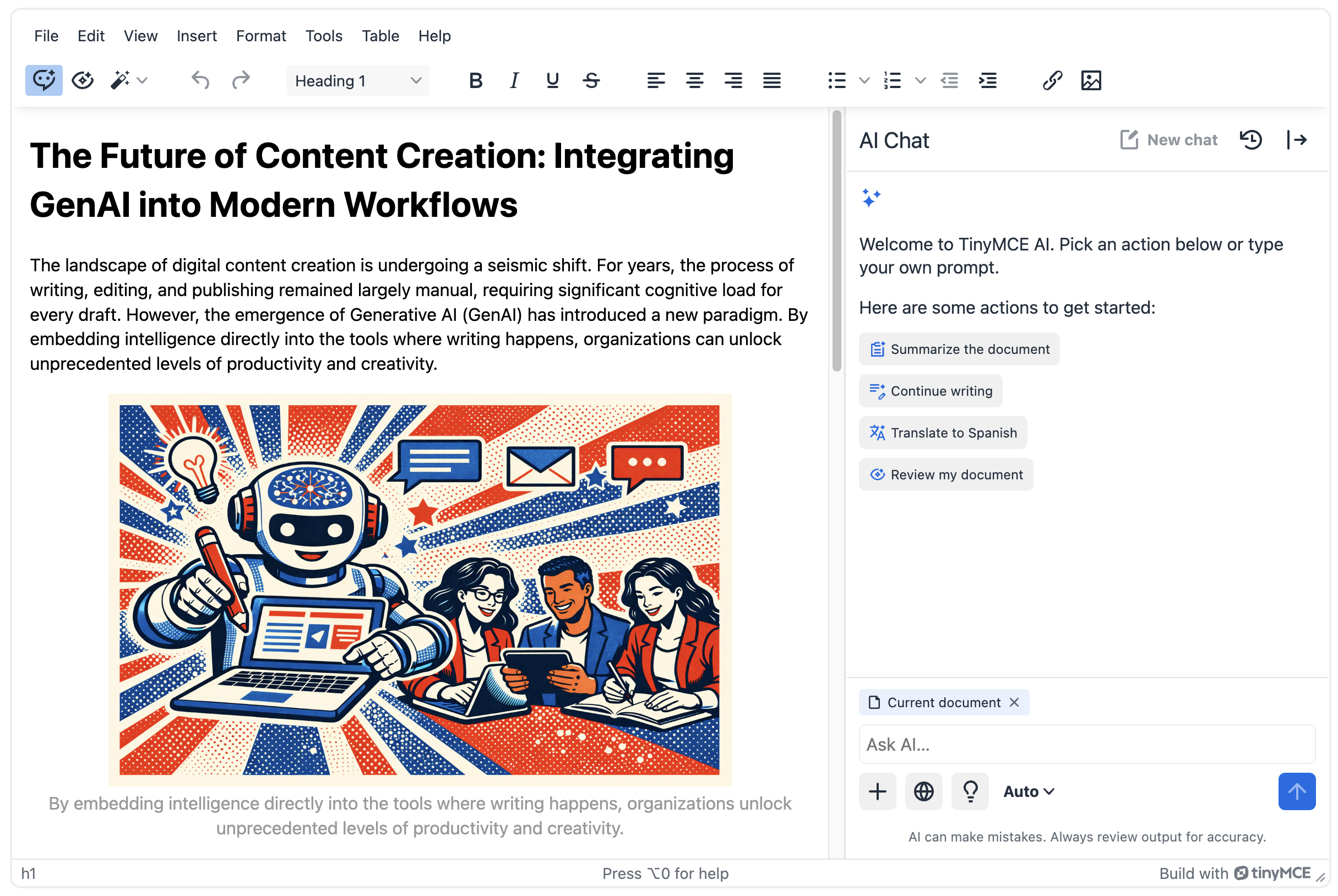 The welcome actions are shown only before the first request is sent in a conversation. They are hidden once the first message is sent and shown again when a new conversation is started. Each suggested action is a button that runs an editor command when selected. Commands can be Quick Actions, Chat commands, the core `ToggleSidebar` command, or any other registered editor command. Descriptive text items and action buttons can be interleaved to group related actions under short headings. ### Configuration Welcome chat actions are configured using two options: - `tinymceai_chat_welcome_message`: Sets the welcome message displayed at the top of the Chat sidebar empty state. - `tinymceai_chat_welcome_actions`: Defines the descriptive text and suggested action buttons shown below the welcome message. Full schemas, supported item types, and command examples are documented under [tinymceai_chat_welcome_message](../tinymceai/#tinymceai_chat_welcome_message) and [tinymceai_chat_welcome_actions](../tinymceai/#tinymceai_chat_welcome_actions). ```js tinymce.init({ selector: '#editor', plugins: 'tinymceai', toolbar: 'tinymceai-chat tinymceai-quickactions tinymceai-review', tinymceai_chat_welcome_message: 'Welcome! How can I help you today?
', tinymceai_chat_welcome_actions: [ { text: 'Here are some actions to get started:' }, { title: 'Summarize the document', command: 'TinyMCEAIQuickActionsSummarize' }, { title: 'Continue writing', command: 'TinyMCEAIQuickActionContinueWriting' }, { title: 'Review my document', command: 'ToggleSidebar', value: 'tinymceai-review' } ], // Required for authentication tinymceai_token_provider: () => { return fetch('/api/token').then(r => r.text()).then(token => ({ token })); } }); ``` ## Adding context to conversations The AI chat can work with the document and beyond. Use the "Add context"  button below the prompt input to add URLs, files, and external resources to the conversation. Uploaded files can include PDF, DOCX, common image formats, Markdown, HTML, and plain text. Per-file size limits, attachment counts, and similar caps depend on the selected model; see [File processing limits](../tinymceai-models/#file-processing-limits). 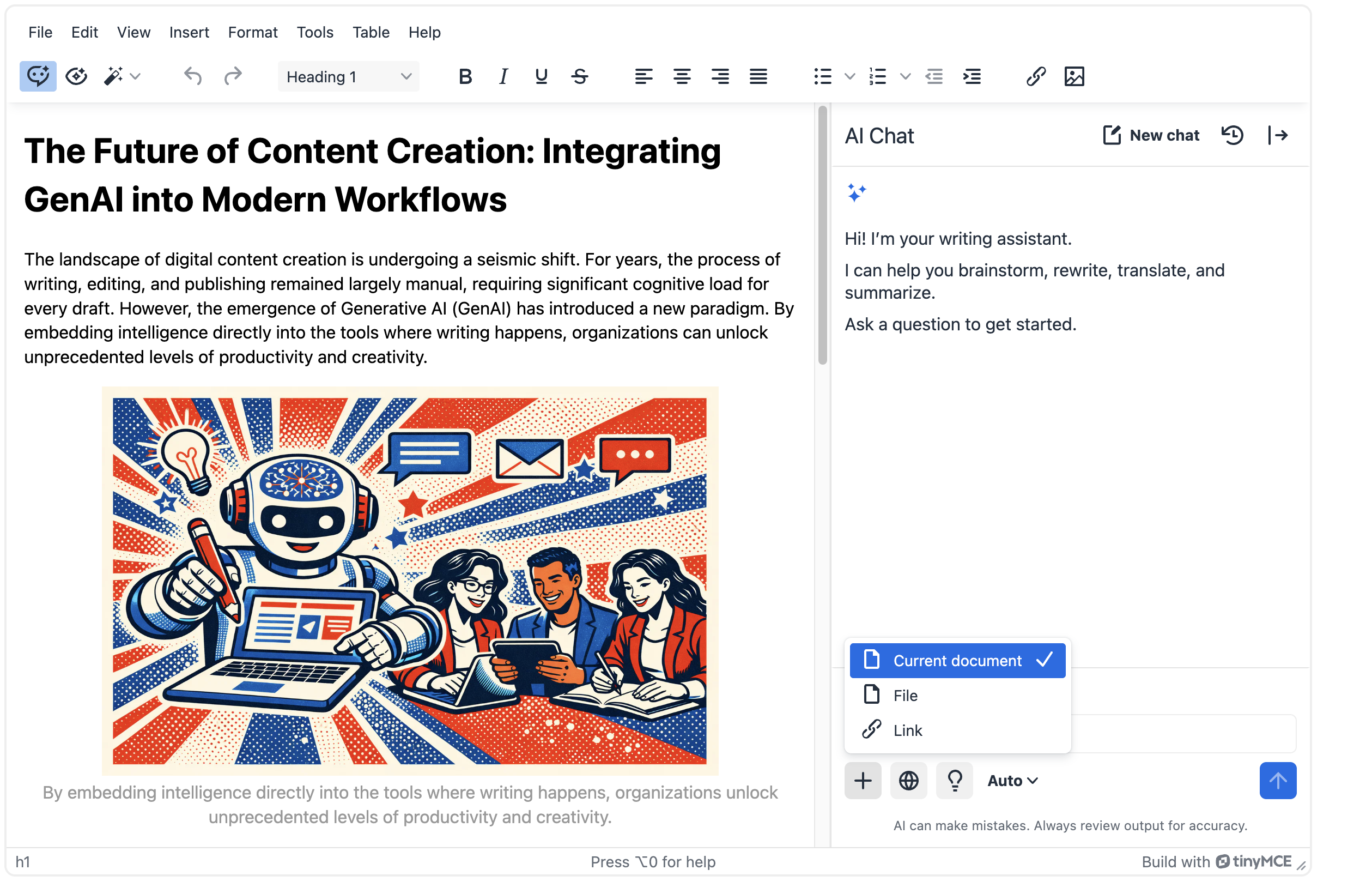 Ask the AI about specific resources, for instance, *"Describe the attached image"* or *"Summarize the key points from the attached Word document"*. The AI will analyze those resources and provide information that can be easily used in the document. External resources enable seamless integration of knowledge bases and other centralized data into AI chat conversations. Instead of uploading documents each time, they can be selected from a list and referenced during the conversation. ### Adding custom context sources Built-in options for adding the current document, URLs, and files to the conversation context are always available to users. There is no configuration option to enable or disable these built-in options. To add custom external sources for users to select from, configure: - `tinymceai_chat_fetch_sources`: Supplies the list of sources shown in the menu (for example from a database or API). - `tinymceai_chat_fetch_source`: Loads the content for a selected source ID so it can be sent to the model as context. Full schemas, return types, and examples are documented under [Chat configuration options](../tinymceai/#tinymceai_chat_fetch_sources). To apply a custom source to every new conversation without requiring users to select it, return an object from [`tinymceai_chat_fetch_sources`](../tinymceai/#tinymceai_chat_fetch_sources) and list the source ID in its `defaults` property. ```js tinymce.init({ selector: '#editor', plugins: 'tinymceai', toolbar: 'tinymceai-chat tinymceai-quickactions tinymceai-review', tinymceai_chat_fetch_sources: async () => [ { label: 'My Documents', sources: [ { id: 'doc-1', label: 'Document 1', type: 'file' }, { id: 'url-1', label: 'Web Page', type: 'web-resource' } ] } ], tinymceai_chat_fetch_source: async (id) => { const res = await fetch(`/api/documents/${id}`); const blob = await res.blob(); const filename = `${id}.pdf`; return { type: 'file', file: new File([blob], filename, { type: blob.type }) }; }, // Required for authentication tinymceai_token_provider: () => { return fetch('/api/token').then(r => r.text()).then(token => ({ token })); } }); ``` ## Working with AI-generated changes When asking the AI for changes to the document, for instance, *"Bold key facts in the document"*, the AI proposes a series of changes. The changes are displayed directly in the document content, making it easy to see what will be modified. When the AI response in the chat panel includes modification history, that block appears in a collapsible section. **Expand** shows the full history when the default preview is truncated. ### Previewing changes A review bar appears at the bottom of the editor with **Diff mode** and **Preview** tabs. Toggle between them to show proposed changes inline (with markers for additions, removals, and formatting) or to preview the final result. When Diff mode is enabled, the proposed changes are highlighted in the document with markers indicating additions (green), removals (red), and formatting changes (blue). Use the arrows in the suggestion overlay to navigate through the changes. The overlay automatically follows the corresponding document sections as each suggestion is selected. ### Applying changes Click the checkmark  in the suggestion overlay to accept the current change. Use the arrow buttons to move between suggestions. 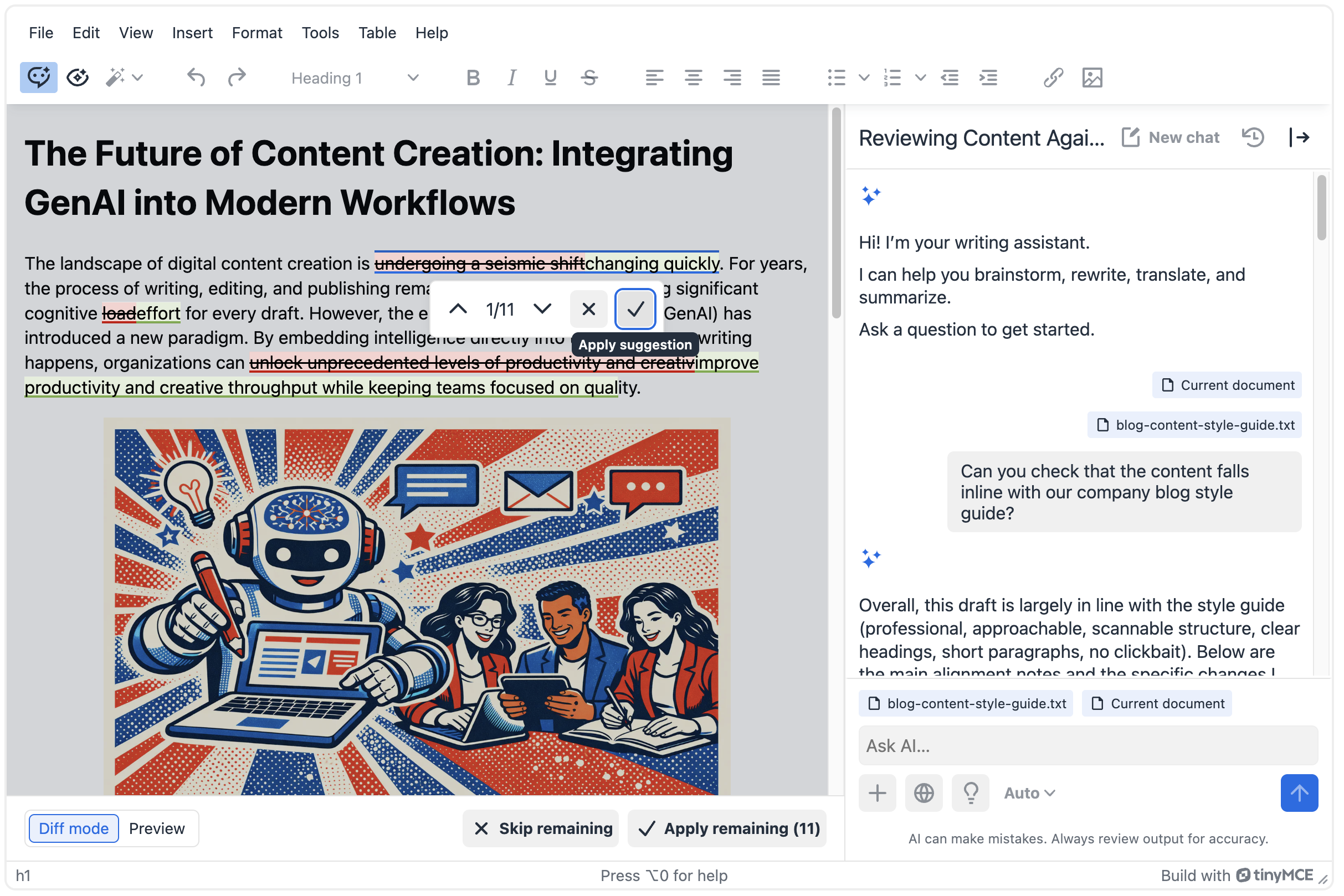 Click **Apply remaining** in the review bar at the bottom of the editor to apply all remaining suggestions at once. The button shows the number of remaining suggestions, for example, "Apply remaining (11)". 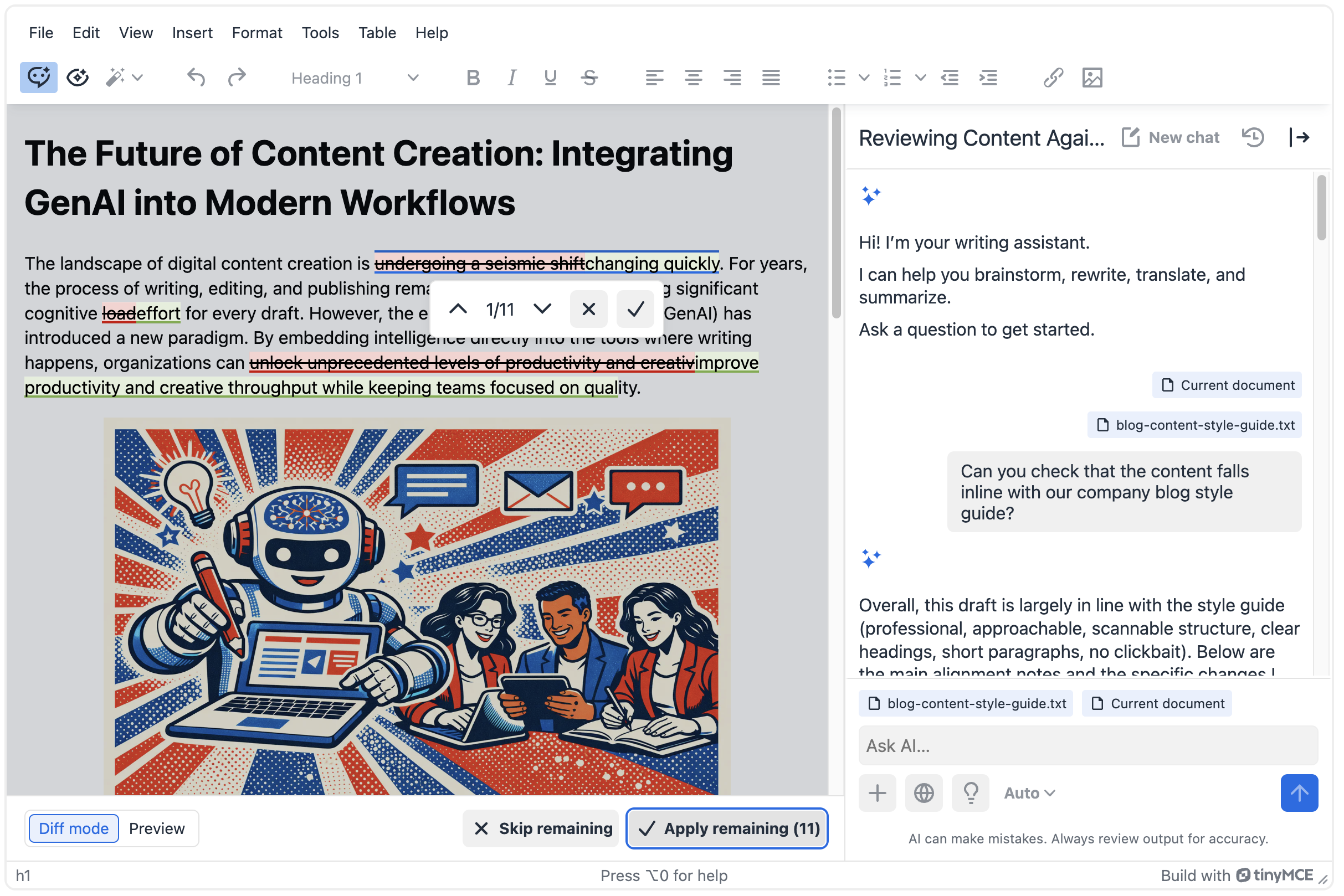 ### Rejecting suggestions Click the  in the suggestion overlay to reject the current suggestion. Click **Skip remaining** in the review bar at the bottom of the editor to skip all remaining suggestions. 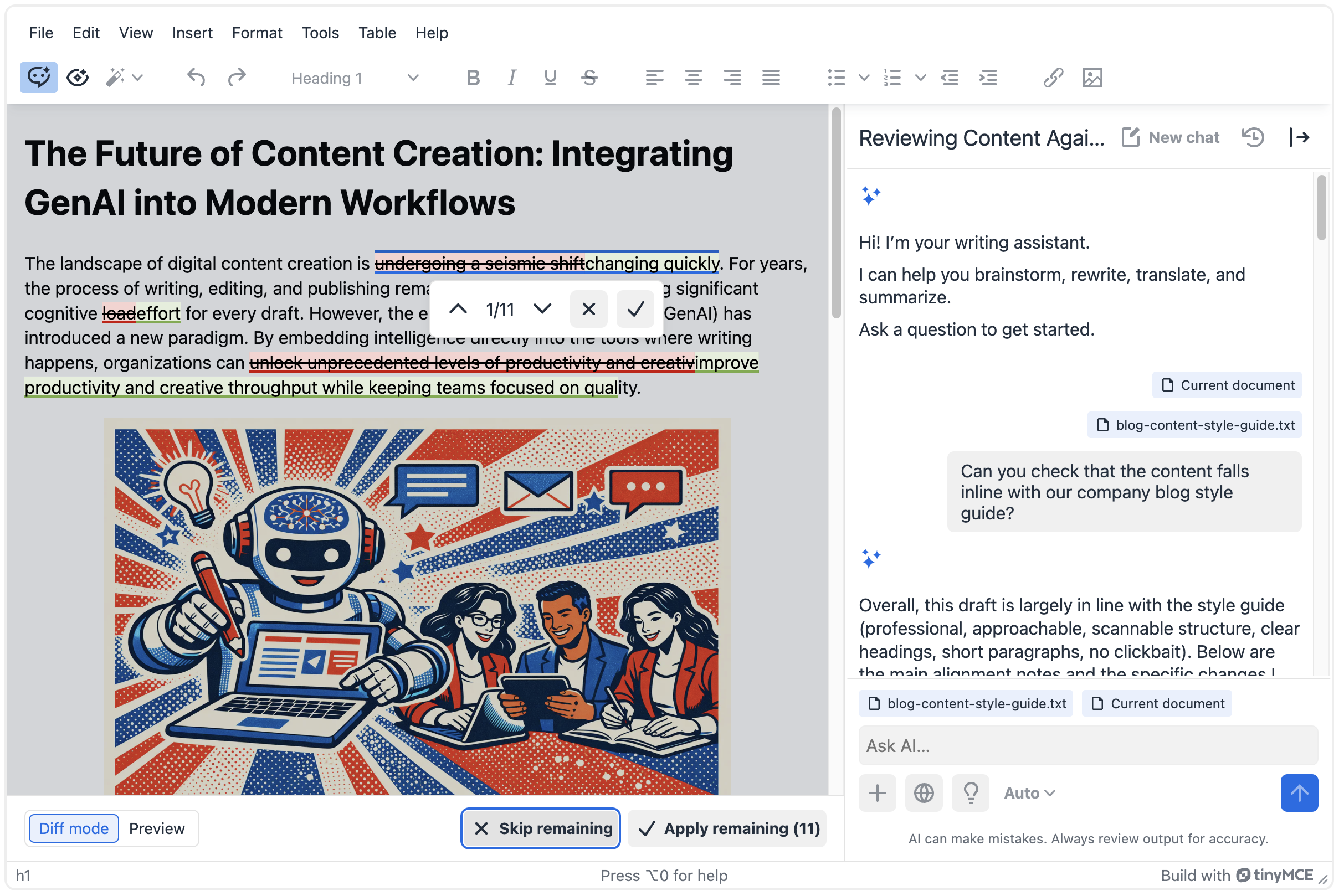 ## Chat history All past conversations appear in the Chat history. Click the  button in the chat header to open the list. Click a conversation to reopen it, or use the menu on each entry to pin, rename, or delete it. Click **Go to AI Chat** to return from the history view to the active conversation. Conversations are grouped by date to help navigate the history. Conversations can be filtered by name using the search field at the top of the user interface. 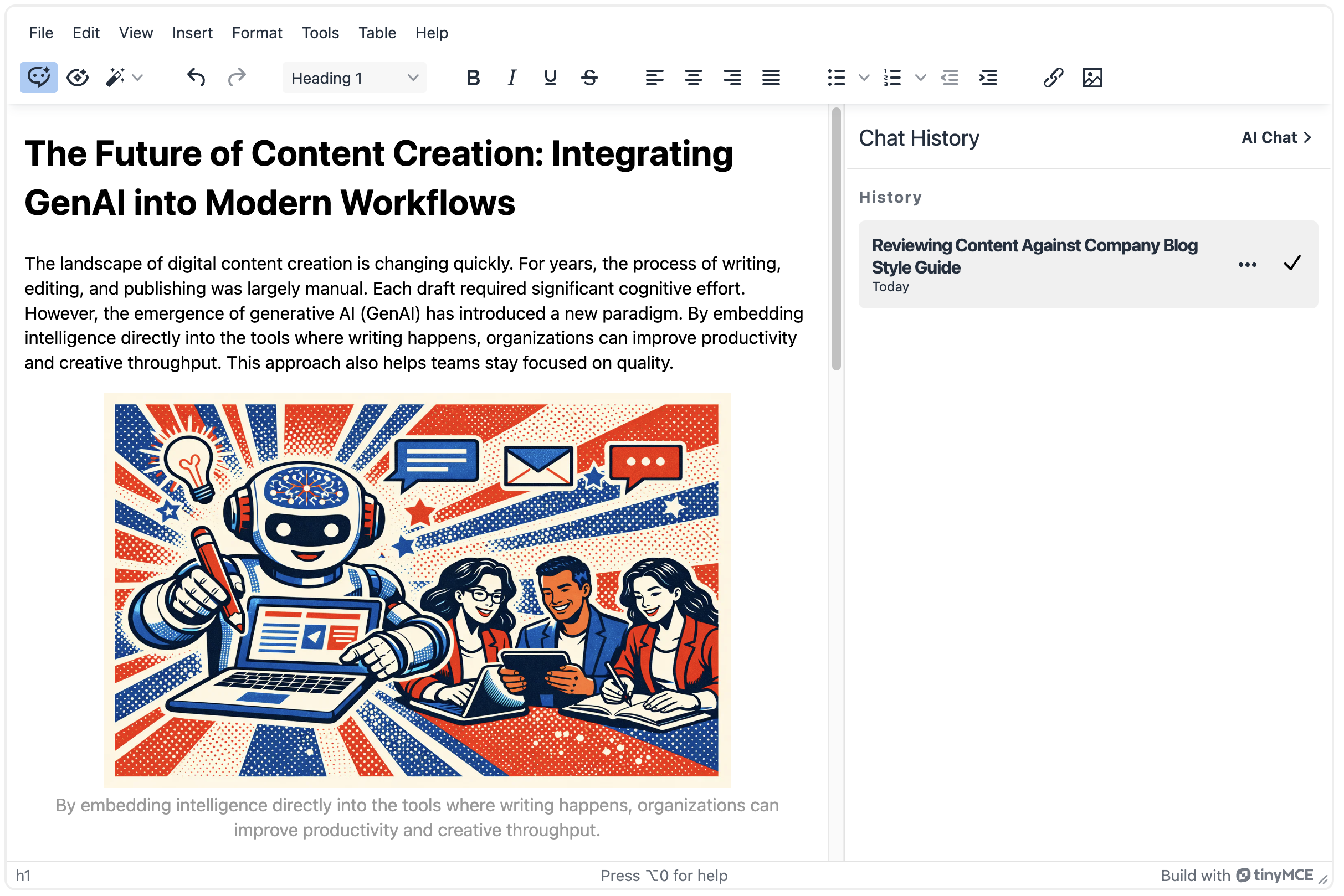 > **Note:** Any conversation from the chat history can be continued as long as the AI model used for that conversation is [still supported](../tinymceai-models/#supported-models) by the feature. Click the conversation in the history to load it in the Chat interface. > **Note:** After a full page load or new browser session, reopening Chat does not automatically reconnect the editor to pending suggestions from an older conversation. Open that conversation again from Chat history so pending suggestions are linked to the current editor session before accepting or dismissing them. ## Conversations API The Chat plugin feature is built on top of the [Conversations API](https://tinymceai.api.tiny.cloud/docs#tag/Conversations), which provides REST access to the same conversation functionality described in [API Overview](../tinymceai-api-overview/). Conversations support multiple messages with shared context, optional files and web resources, and suggestions that can update editor content. For endpoint listings and request or response schemas, start with [API Overview](../tinymceai-api-overview/) and [API Quick Start](../tinymceai-api-quick-start/), then use the [interactive API documentation](https://tinymceai.api.tiny.cloud/docs) (for example the [Conversations](https://tinymceai.api.tiny.cloud/docs#tag/Conversations) operations). ### Key Features The API supports uploading PDFs, Word docs, and images for the AI to read and understand. Ask questions about specific sections and get intelligent answers. The AI extracts text while preserving structure from PDFs, maintains formatting context from Word documents, parses web content from HTML files, and processes images with OCR and object recognition. Each conversation builds on previous messages, so the AI keeps track of the entire discussion and any files that have been shared. Documents, images, web links, and text can be mixed in one conversation, and the AI connects information across all formats. ### Example: Product Launch Workflow 1. **Upload product spec** → *"What are the key features for marketing?"* 2. **Add competitor analysis** → *"How do we compare to competitors?"* 3. **Reference blog post** → *"Write a press release using this blog post and our competitive advantages"* 4. **Include brand guidelines** → *"Match our brand voice and key messaging"* The AI remembers everything that has been shared and builds on it throughout the conversation. ### API Capabilities When using the Conversations API directly, advanced capabilities can be configured: - **Web Search**: Enable real-time web search to access current information during conversations. Configure using the `webSearch` capability in API requests. See [Conversation Web Resources API](https://tinymceai.api.tiny.cloud/docs#tag/Conversation-Web-Resources) for endpoint details. - **Reasoning**: Enable step-by-step reasoning to see the AI’s problem-solving process. Configure using the `reasoning` capability in API requests. See [Conversation Messages API](https://tinymceai.api.tiny.cloud/docs#tag/Conversation-Messages) for endpoint details. ### Streaming Responses Conversations use Server-Sent Events (SSE) for real-time streaming responses. See the [Streaming Responses guide](../tinymceai-streaming/) for detailed implementation information and code examples. ### API Reference The [interactive API documentation](https://tinymceai.api.tiny.cloud/docs) lists every conversation endpoint, parameter, schema, and example. In that UI, related operations are grouped under tags such as [Conversations](https://tinymceai.api.tiny.cloud/docs#tag/Conversations), [Conversation Documents](https://tinymceai.api.tiny.cloud/docs#tag/Conversation-Documents), [Conversation Files](https://tinymceai.api.tiny.cloud/docs#tag/Conversation-Files), [Conversation Web Resources](https://tinymceai.api.tiny.cloud/docs#tag/Conversation-Web-Resources), and [Conversation Messages](https://tinymceai.api.tiny.cloud/docs#tag/Conversation-Messages) (including streaming, web search, and reasoning options where applicable). ## Related Features - [AI Review](../tinymceai-review/): For content quality analysis and improvement suggestions. - [Quick actions](../tinymceai-actions/): For fast, stateless content transformations.