---
title: "Cloud Troubleshooting"
description: "Causes and solutions to common issues when using Tiny Cloud"
canonical_url: "https://www.tiny.cloud/docs/tinymce/latest/cloud-troubleshooting/"
md_url: "https://www.tiny.cloud/docs/tinymce/latest/cloud-troubleshooting/index.md"
version: "latest"
last_updated: "2026-09-28T00:27:52Z"
tokens: 2151
---
# Cloud Troubleshooting
When Tiny Cloud detects a problem, it will show an editor notification containing information about the problem. This page describes the cause and solution for common Tiny Cloud error notifications.
> **Note:** The wording of the notifications shown here may differ from the actual notifications from Tiny Cloud.
## Invalid API Key
### "A valid API key is required to continue using TinyMCE. **Please alert the admin** to check the current API key. [Click here to learn more.](../invalid-api-key/) "
#### Cause
This notification is shown when either:
- An `apiKey` is not provided in the script tag,
- An empty or missing `apiKey` is provided, or
- The `apiKey` provided cannot be found on the Tiny Cloud server.
The `apiKey` must be:
- An exact length,
- comprised of certain characters, and
- created with a Tiny Cloud account on the [Tiny Account page](/auth/signup/).
For example:
```html
```
In this case, the editor will be in a **read-only** state, and a notification appears stating: **"A valid API key is required to continue using TinyMCE. Please alert the admin to check the current API key. Click here to learn more."**
#### Solution
To resolve this issue:
1. Update the `src` URL to include your (website or application developer’s) Tiny Cloud API Key, by replacing the placeholder `no-api-key` with your actual API key.
For example: if your API is `abcd1234`:
```html
```
2. Check the `apiKey` provided in the script tag:
- Remove any leading or trailing spaces.
- Remove any other characters that are not in your `apiKey`. If you are using variable substitution, ensure that the variable is substituting properly.
- Ensure the `apiKey+` matches the API key shown at [https://www.tiny.cloud/my-account](/my-account).
3. If you do not have an API key, or need to retrieve your existing key, visit: [Tiny Cloud](/auth/signup/).
> **Note:** Visit our [Invalid API key](../invalid-api-key/) page for more information on how to fix an `invalid API key` issue with TinyMCE.
## No API Key
### "A valid API key is required to continue using TinyMCE." (Console message)
#### Cause
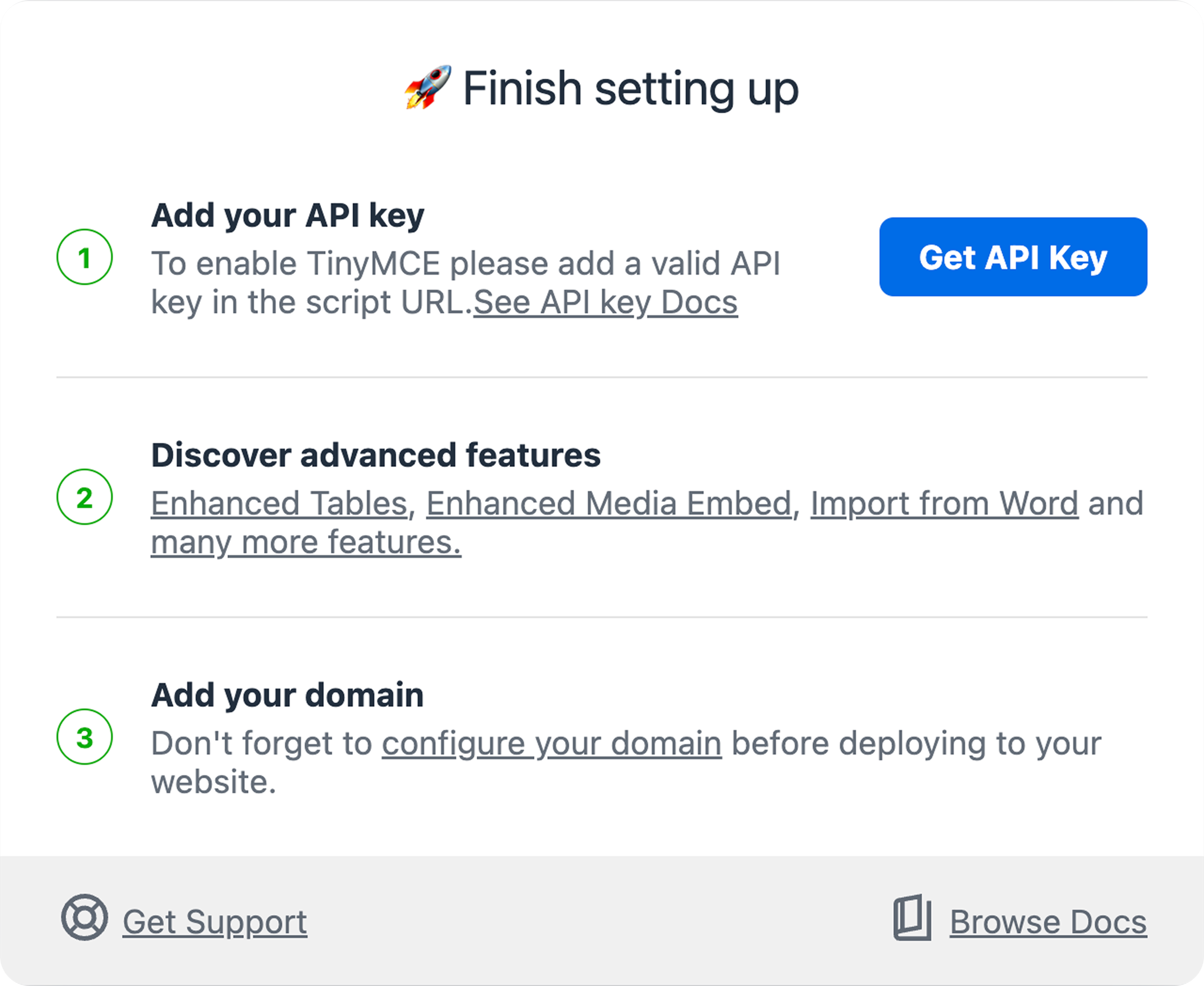
When `no-api-key` is set as the `apiKey` the editor will be in a **read-only** state, and the user will see a **"Finish setting up"** dialog prompting them to add a valid API key, configure their domain, and explore premium features.
#### Solution
1. Update the `src` URL to include your (website or application developer’s) Tiny Cloud API Key, by replacing the placeholder `no-api-key` with your actual API key.
For example: if your API is `abcd1234`:
```html
```
To retrieve your API key, or to sign up for an API key, visit: [Tiny Cloud](/auth/signup/).
## Domain Not Registered
### "This domain is not registered in the TinyMCE Customer Portal. **Please alert the admin** to add it to the approved domains to continue using TinyMCE. [Click here to learn more.](../invalid-api-key/) "
#### Cause
This notification is shown when the [**Referer**](https://developer.mozilla.org/en-US/docs/Web/HTTP/Headers/Referer) of the page does not match the list of approved domains stored against your `apiKey`. Tiny Cloud verifies the domain TinyMCE is loading from by checking the domain portion of the **Referer** header in the network request. You can view a list of your approved domains on your [Tiny Account](/my-account/).
Sometimes the domain in the **Referer** header does not match with the URL in the browser’s address bar. To check the **Referer** header:
- Open your browser’s *Developer’s Tools*.
- Open the *Network* tab.
- Find and select the request being made to load TinyMCE from Tiny Cloud with your API key.
- Click on the **Headers** tab.
In the section called **Request Headers** there should be a field for **Referer**. This is the value that TinyMCE is checking against your approved domains. It must match one of your approved domains listed on your [Tiny Account](/my-account/).
#### Solution
If the `Referer` is correct for the site, ensure that the domain is included in your list of approved domains on [Tiny Account](/my-account/). If the `Referer` is not what you are expecting, you may need to adjust your application’s [**Referer** header](https://developer.mozilla.org/en-US/docs/Web/HTTP/Headers/Referer) settings.
## Referer Heading Missing
### "We’re unable to check your domain because the referer header is missing. Please read the Guide on how to ensure your referer header is present, so we can then customize your editor experience."
#### Cause
- This notification is shown if the [**Referer** header](https://developer.mozilla.org/en-US/docs/Web/HTTP/Headers/Referer) is absent for the network request when loading TinyMCE from Tiny Cloud. Tiny Cloud verifies the domain TinyMCE is loading from by checking the domain of the **Referer** header in the network request.
- *Referer* headers are sometimes removed by browser settings or browser extensions. Tiny Cloud only needs the domain in the **Referer** header, so for improved performance and privacy Tiny recommends setting the `referrerpolicy` to `origin` when requesting Tiny Cloud resources.
#### Solution
Identify which browser setting or extension is responsible for blocking the **Referer** being sent. A common extension is `Referer Control`:
- [Google Chrome](https://chrome.google.com/webstore/detail/referer-control/hnkcfpcejkafcihlgbojoidoihckciin?hl=en)
- [Firefox](https://addons.mozilla.org/en-US/firefox/addon/referercontrol/)
Once you have identified the setting or extension, modify it to allow just the `Origin` of the `Referer` to be sent. Alternatively, disable the extension or setting for any pages using Tiny Cloud.
## Troubleshooting Premium Plugins
### "The *_* premium plugin is not enabled on your API key. Upgrade your account."
#### Cause
This notification is shown when your API key does not have access to the premium plugin being requested. This could be the result of a trial expiring, and your TinyMCE configuration attempting to load premium plugins you can no longer access.
You may also be seeing this notification if you are using the wrong API key. Ensure that you are using the API key that has the right entitlements.
#### Solution
Either remove the premium plugin from your TinyMCE configuration, or upgrade your subscription to provide access to that premium plugin.
> **Note:** Visit our [Invalid API key](../invalid-api-key/) page for more information on how to fix a `invalid API key` with TinyMCE.
## Read-only mode - No API Key
### “TinyMCE is in read-only mode. **Please alert the admin** that an API key is required for continued use. [Learn more](../invalid-api-key/)
#### Cause "No API Key (Read only mode)"
This message is sent when the developer has not supplied an API key, typically because they’ve copied a getting-started script and have not completed the official [signup](/auth/signup/) process to get an API key.
#### Solution
- **Please alert your Admin** that an API key is required for continued use. [Learn more](../invalid-api-key/), or
- Sign up for a API key by visiting [www.tiny.cloud/auth/signup](/auth/signup/), and
- Update your TinyMCE configuration.
> **Note:** Visit our [Invalid API key](../invalid-api-key/) page for more information on how to fix a `invalid API key` with TinyMCE.
## Read-only mode - Invalid API Key
### “TinyMCE is in read-only mode. **Please alert the admin** to provide a valid API key to continue use. [Learn more](../invalid-api-key/) Your TinyMCE editor state has been set to read-only mode.”
#### Cause "Invalid API Key (Read only-mode)"
This message is shown when the API key is not correct, perhaps because of a typo.
#### Solution
- Login to your TinyMCE account and confirm that your API key matches your unique key by visiting [www.tiny.cloud/auth/login/](/auth/login/).
- or to sign up for an API key, visit: [Tiny Cloud](/auth/signup/).
## Read-only mode - Invalid Origin
### “TinyMCE is in read-only mode. **Please request that the admin** add this domain to the approved domains in the Customer Portal. For more information see [Domain not registered](#domain-not-registered) ”
#### Cause "Invalid Origin (Read only mode)"
This message is shown when TinyMCE is loaded from a domain that has not been added to the approved domains in our account portal.
#### Solution
Please request that your admin add this domain to the approved domains in the Customer Portal. For more information see [Domain not registered](#domain-not-registered)
> **Note:** From [TinyMCE 7.6.0](/docs/tinymce/7/7.6.0-release-notes/#overview) onwards, the editor uses disabled mode instead of read-only mode.